
When we update a legal page template, every page you made from it gets an Update Available badge.
Your saved answers carry over, so you only answer new questions and check the new text before it goes live.
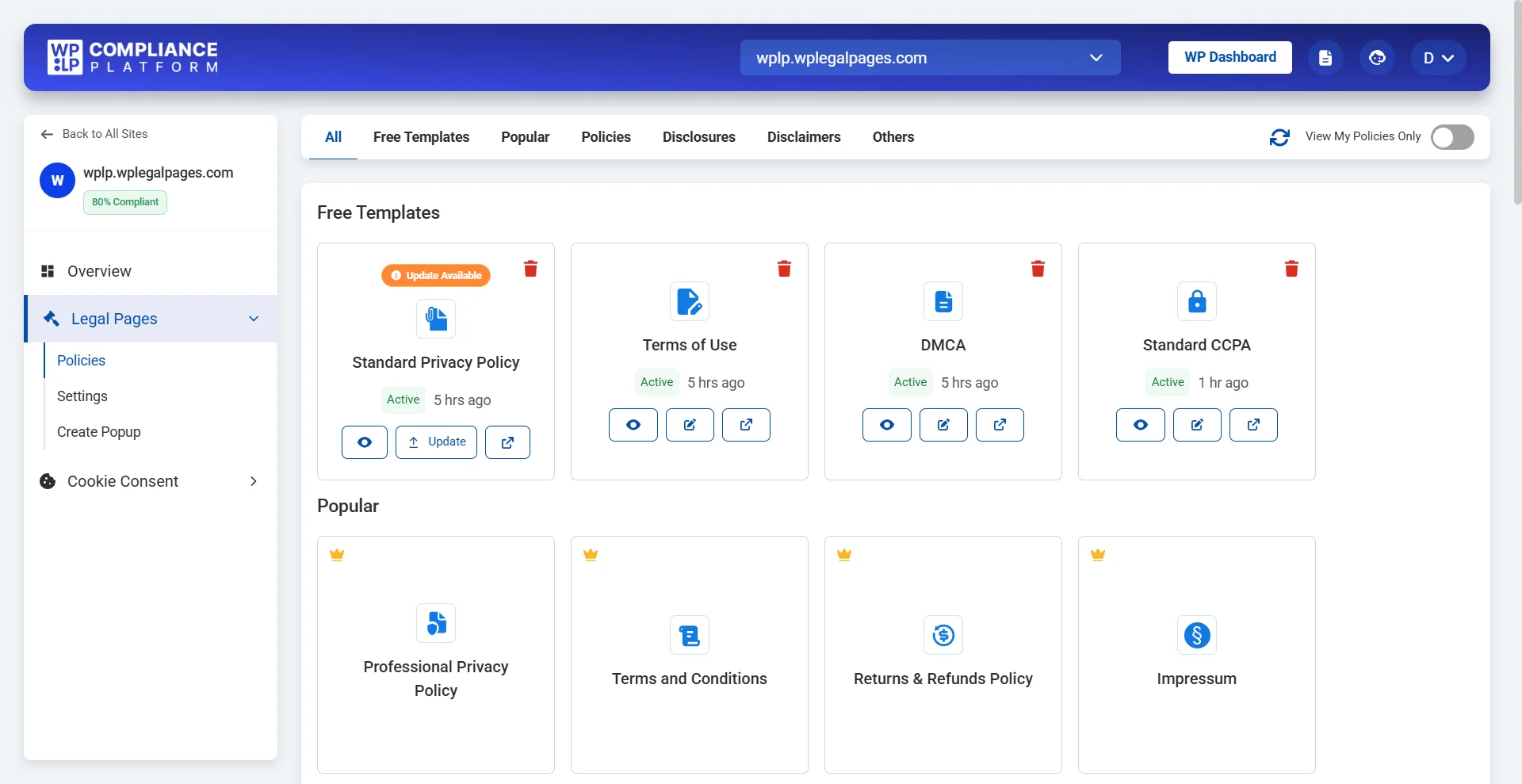
Step 1: Find the Update Available badge
- Open your website in the WPLP web app.
- Go to Legal Pages > Policies.
- Look for an orange Update Available badge on your page cards.
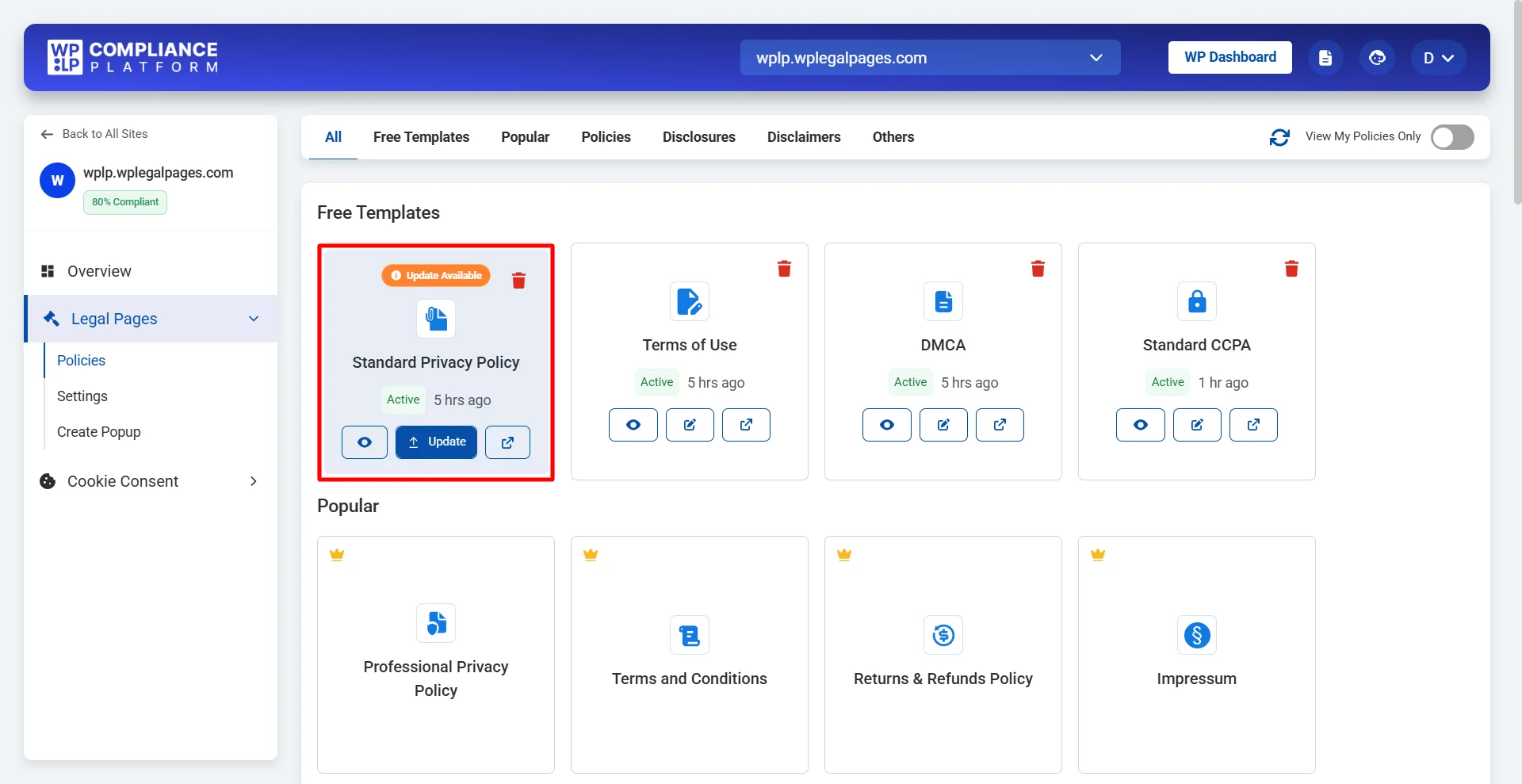
No badge on a card means that page already matches the latest template.
Step 2: Click Update and answer any new questions
- On the flagged card, click Update.
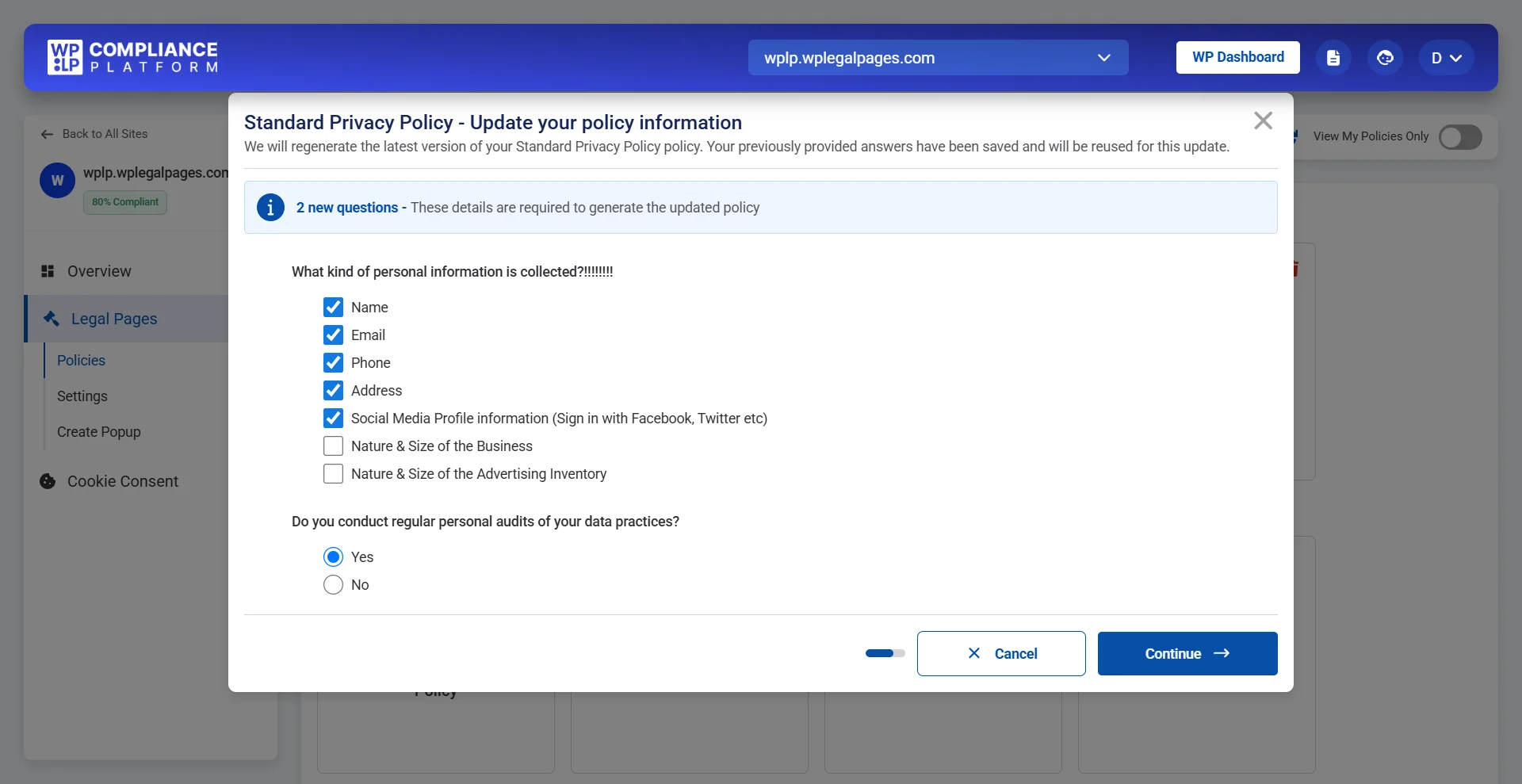
- The Update your policy information window opens. Your earlier answers are already saved and filled in.
- If the new template needs more details, a blue box tells you how many new questions there are. Answer them.
- Click Continue.
Step 3: Review the updated policy
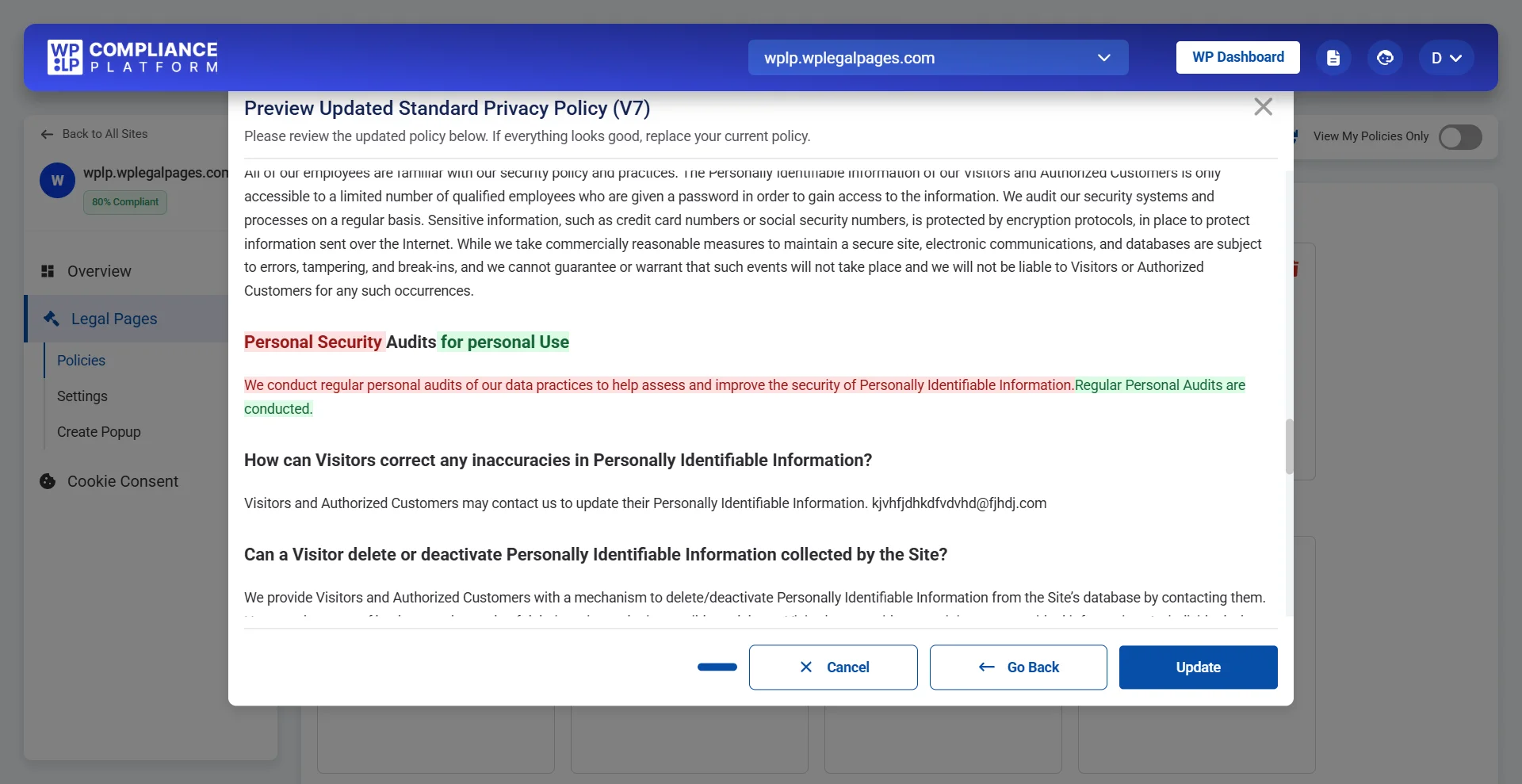
The Preview Updated window shows the new version of your page before anything changes on your site.
The Policy Summary at the top shows the policy name, the new version, and the last updated date.
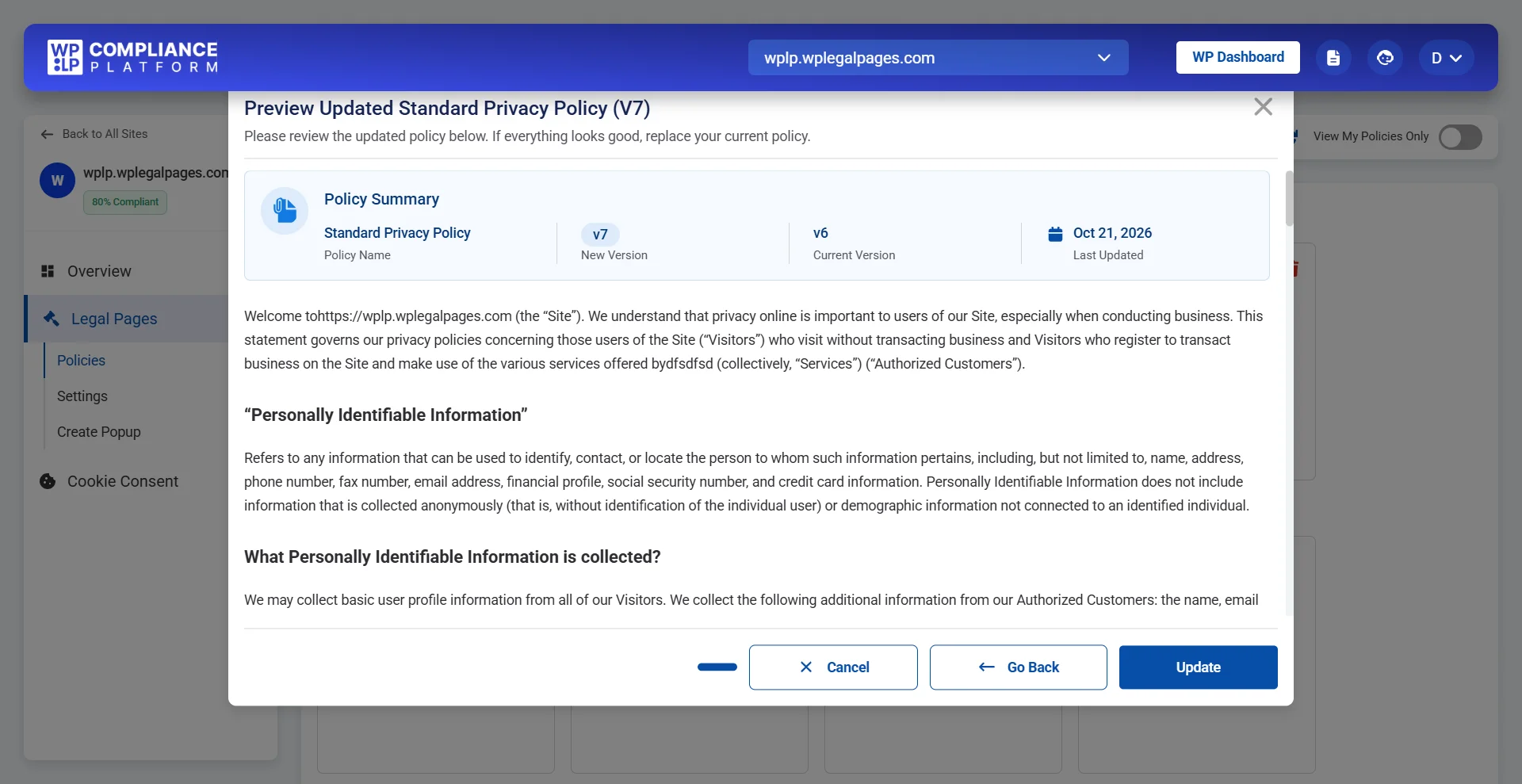
Scroll through the policy. Changed text is highlighted: Red highlights the old text, while green highlights the new text.
Step 4: Publish the update
If the new text looks good, click Update. The new version replaces your current page.
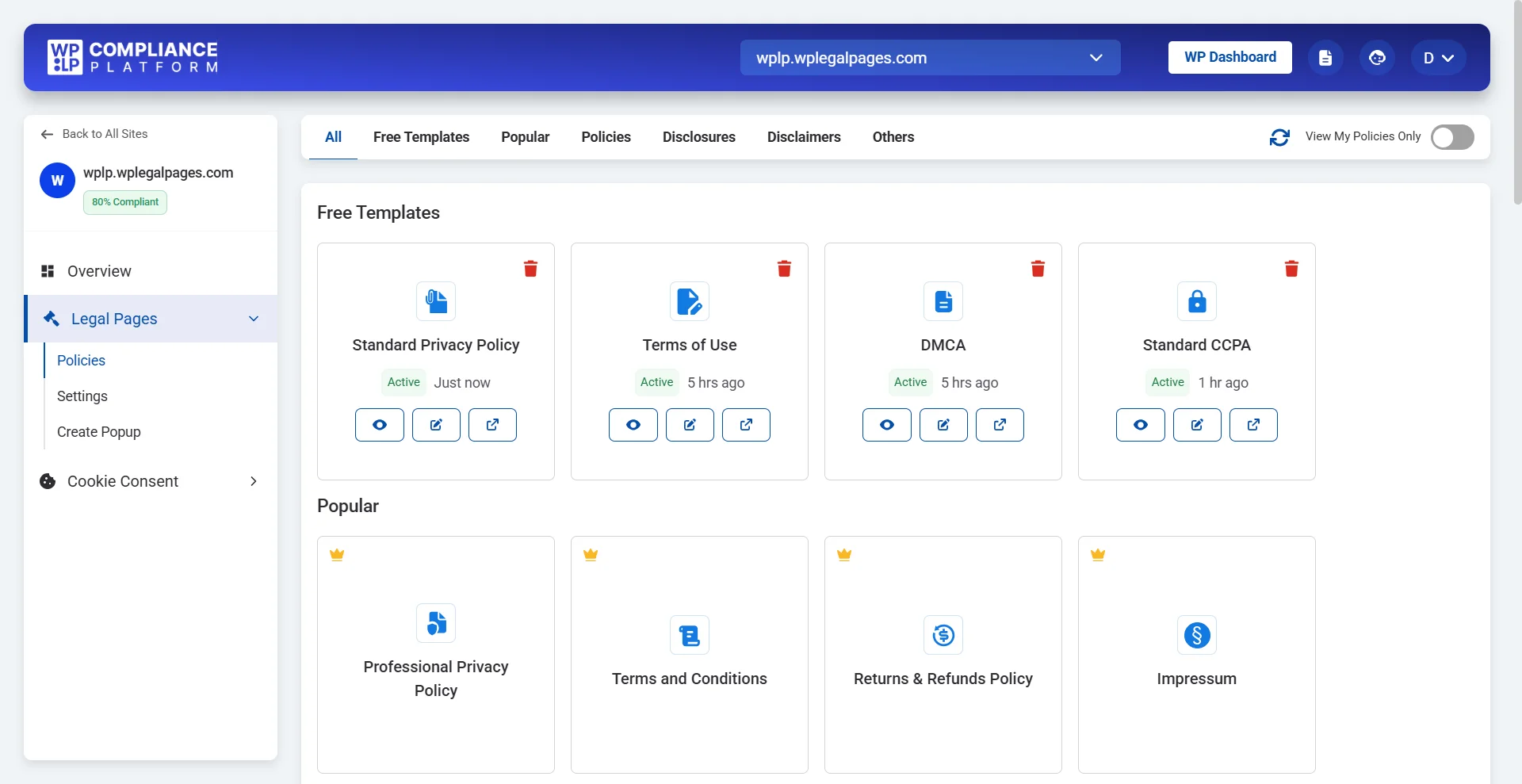
When the update is done, the badge disappears, and the card shows Active with the time of the update.
FAQ
No. Your current page stays live until you click Update in the preview window.
No. Your saved answers are reused. You only answer the new questions.
Nothing changes. The badge stays on the card, so you can start again at any time.


