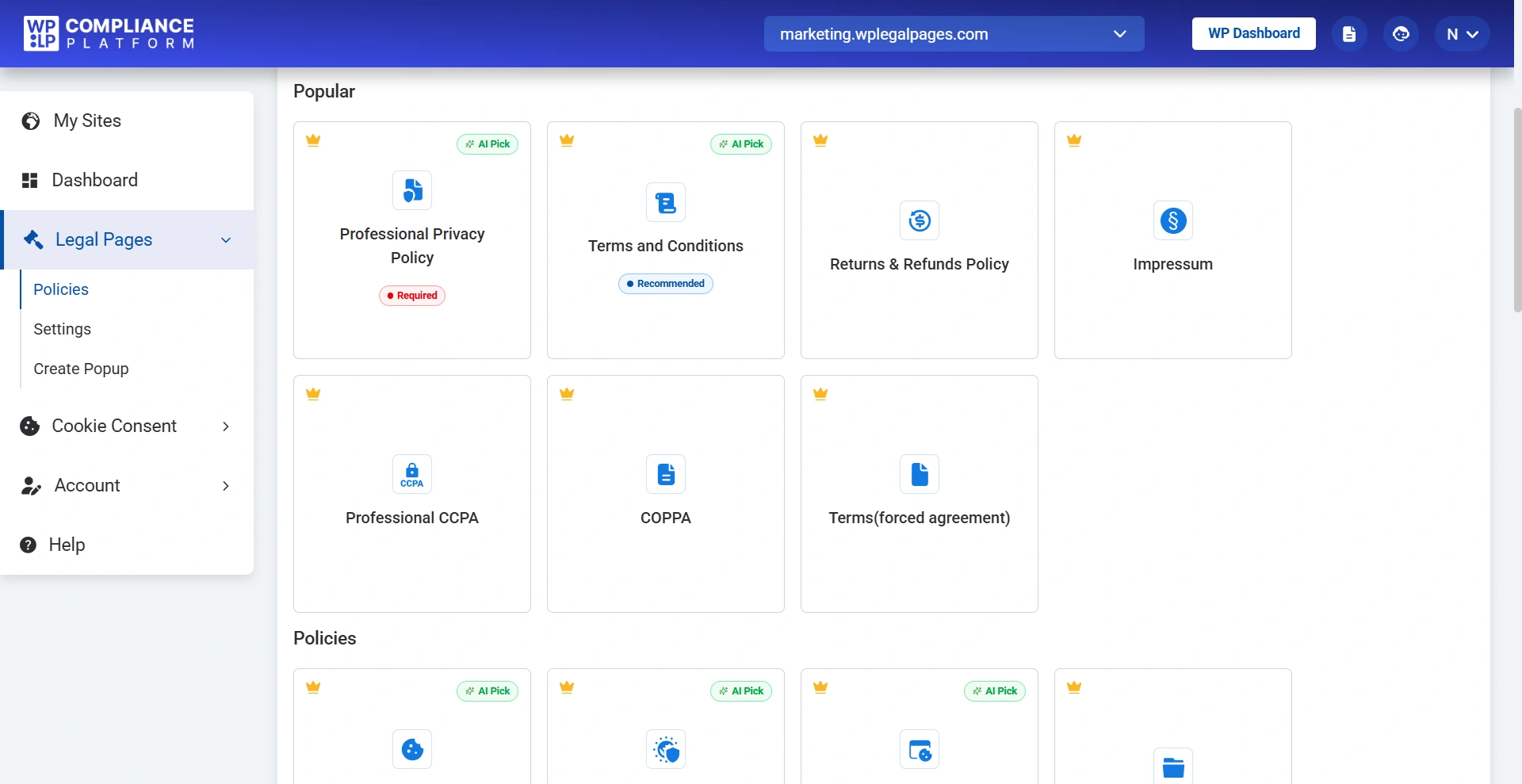
The Compliance Setup Wizard is designed to simplify website compliance by guiding you through every essential step.
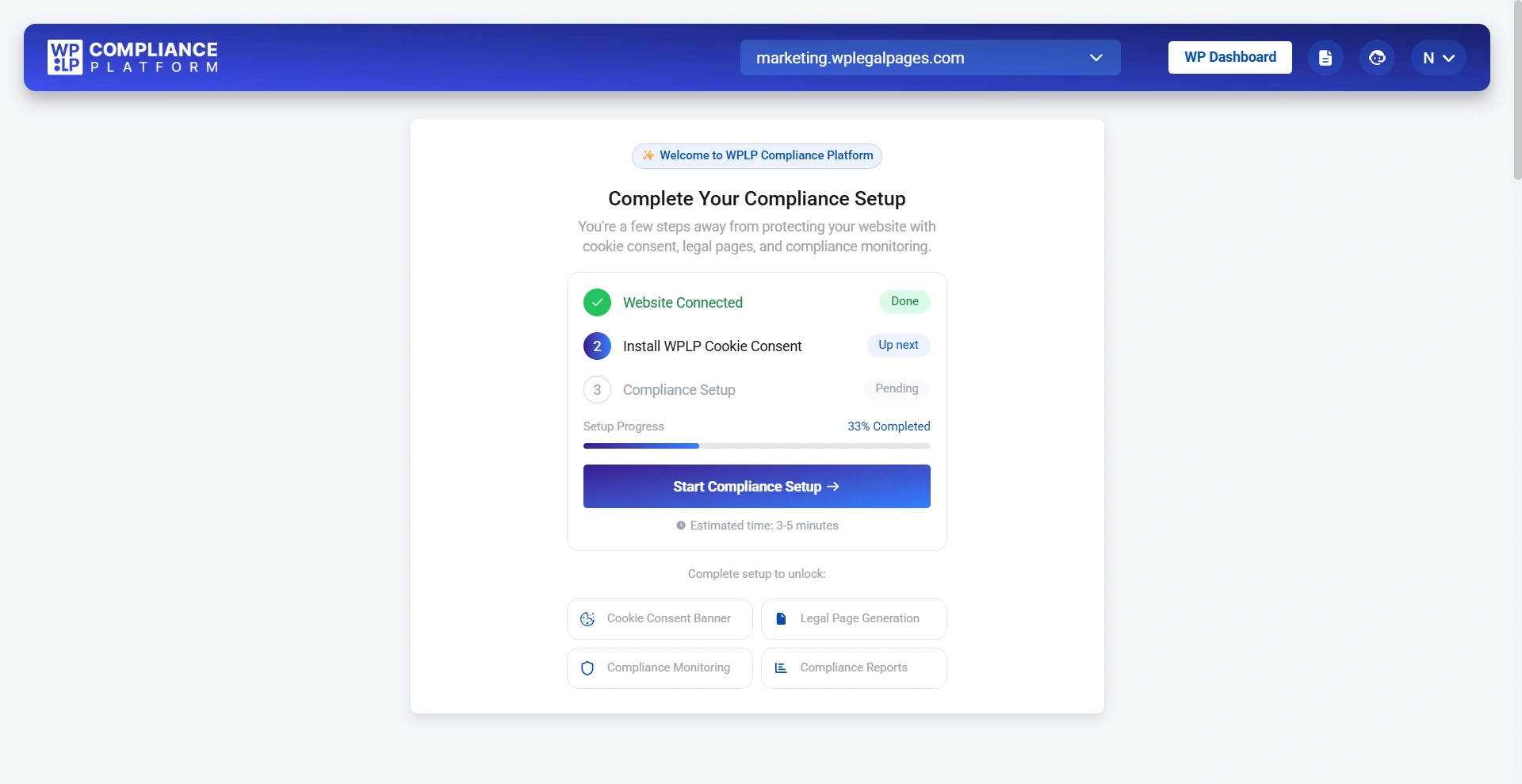
After connecting your website to the WPLP Compliance Platform, click Start Compliance Setup to begin the guided onboarding process.
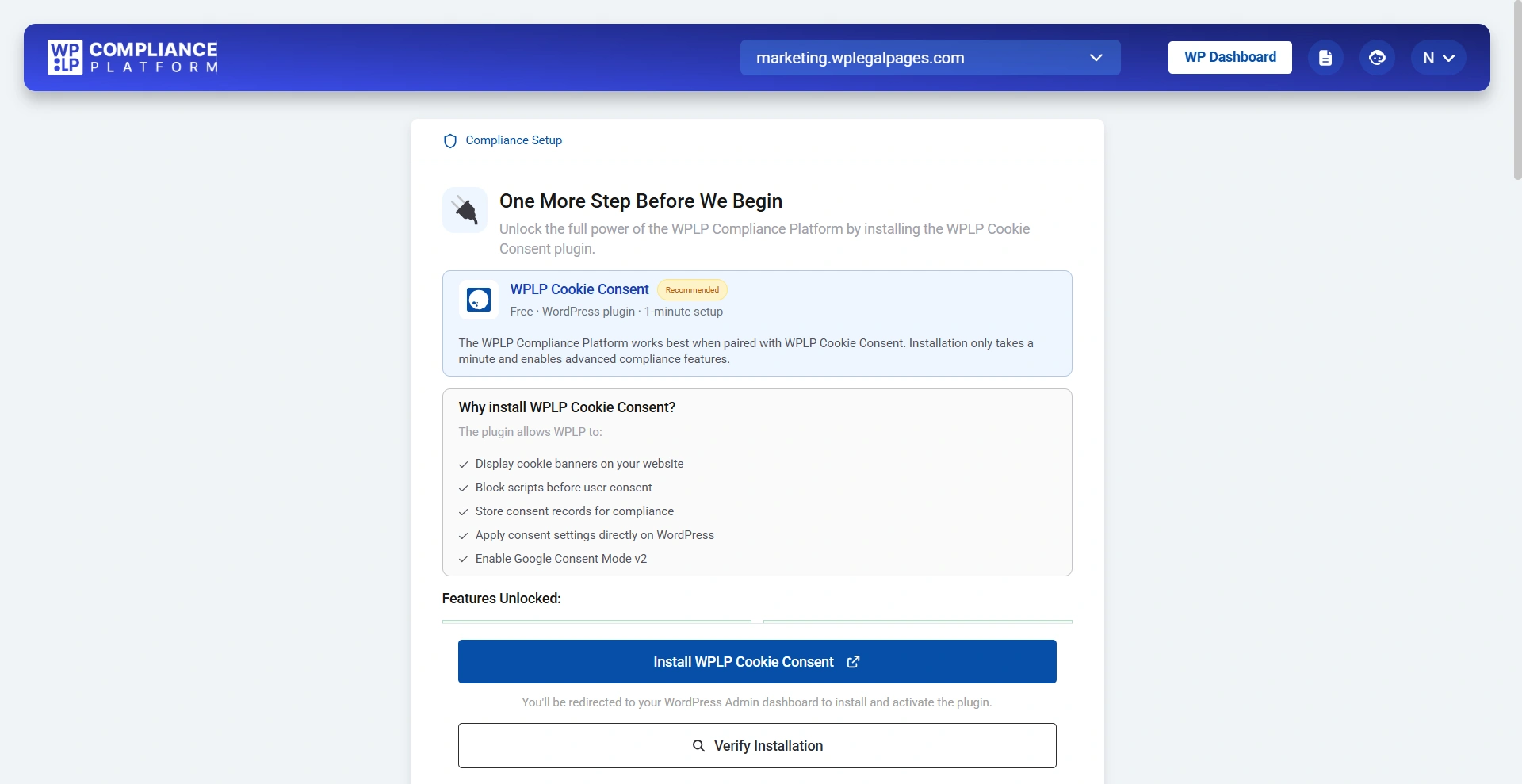
If the WPLP Cookie Consent plugin is not installed on your website, the wizard will prompt you to install it. Simply click Install WPLP Cookie Consent and complete the installation.
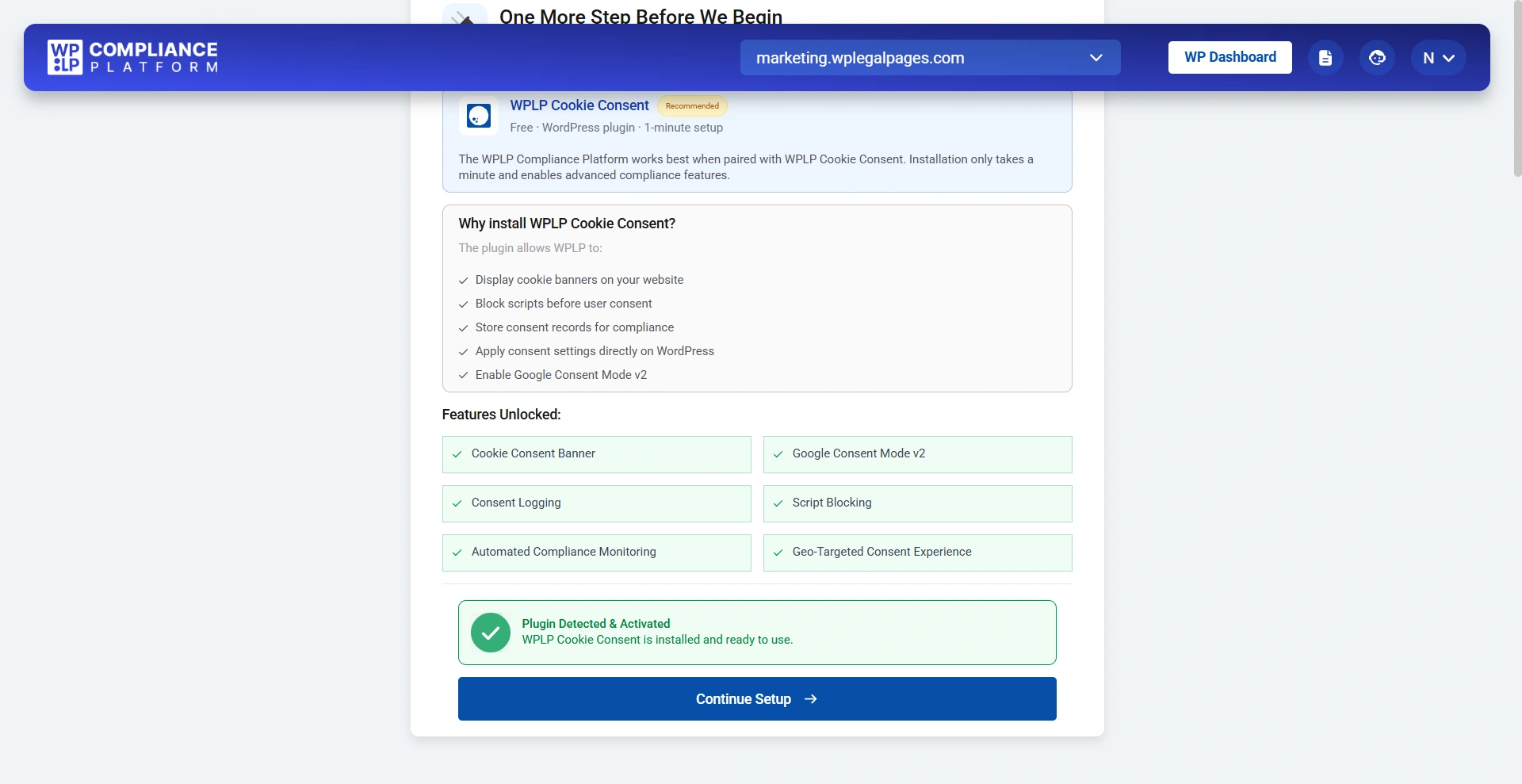
Once installed, return to the setup wizard and click Verify Installation to confirm that the plugin has been successfully activated.
If you have already installed the plugin, you can skip the installation step and click Verify Installation to continue with the compliance setup.
Step 1: Tell Us About Your Website
To provide accurate compliance recommendations, the wizard asks for some basic information about your website.
You’ll be asked to provide details such as:
- Website type (Blog, Business, Ecommerce, SaaS, Agency, Membership, etc.)
- Country where your business operates
- Whether your website receives visitors from the EU, UK, or EEA
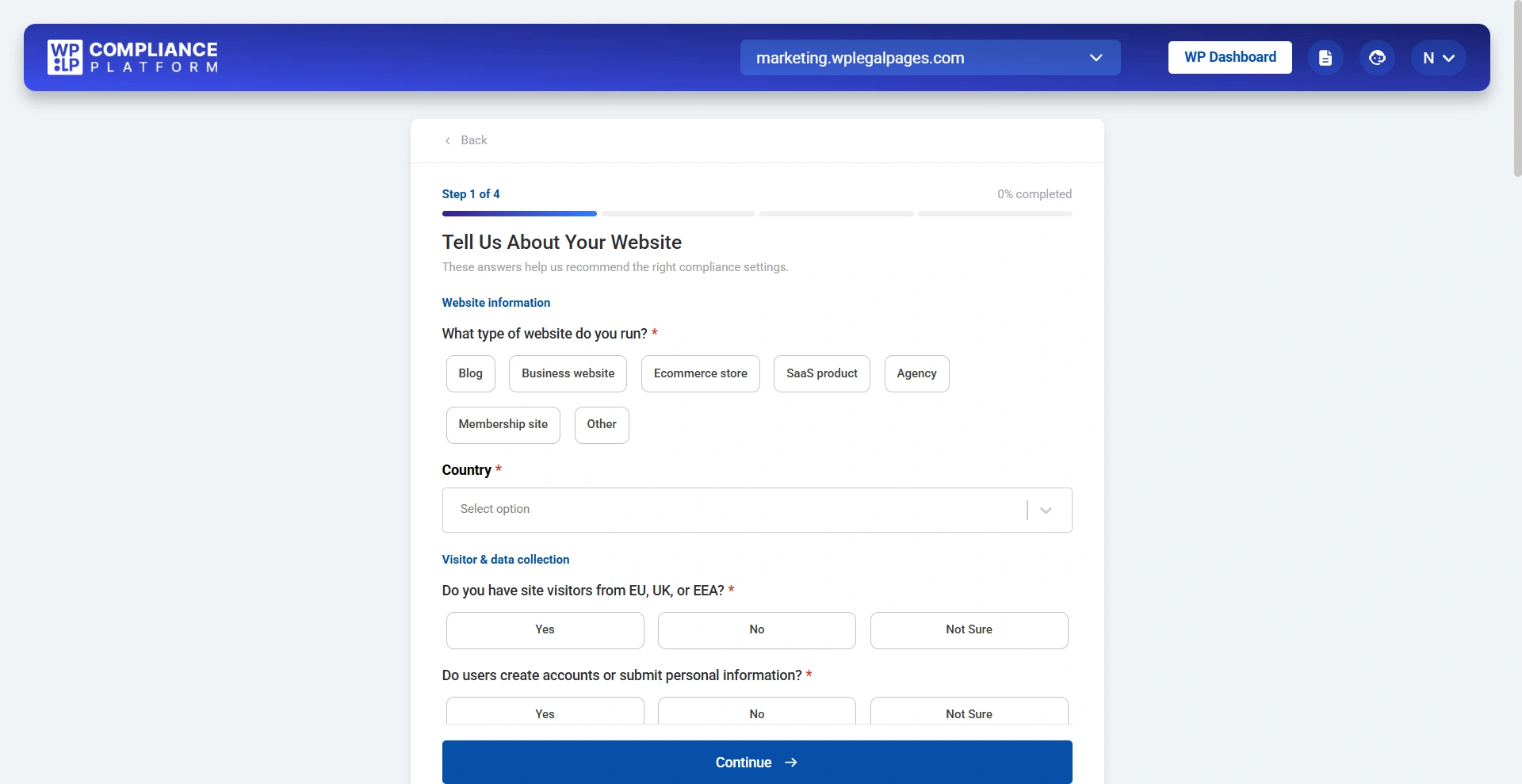
- Whether users create accounts or submit personal information
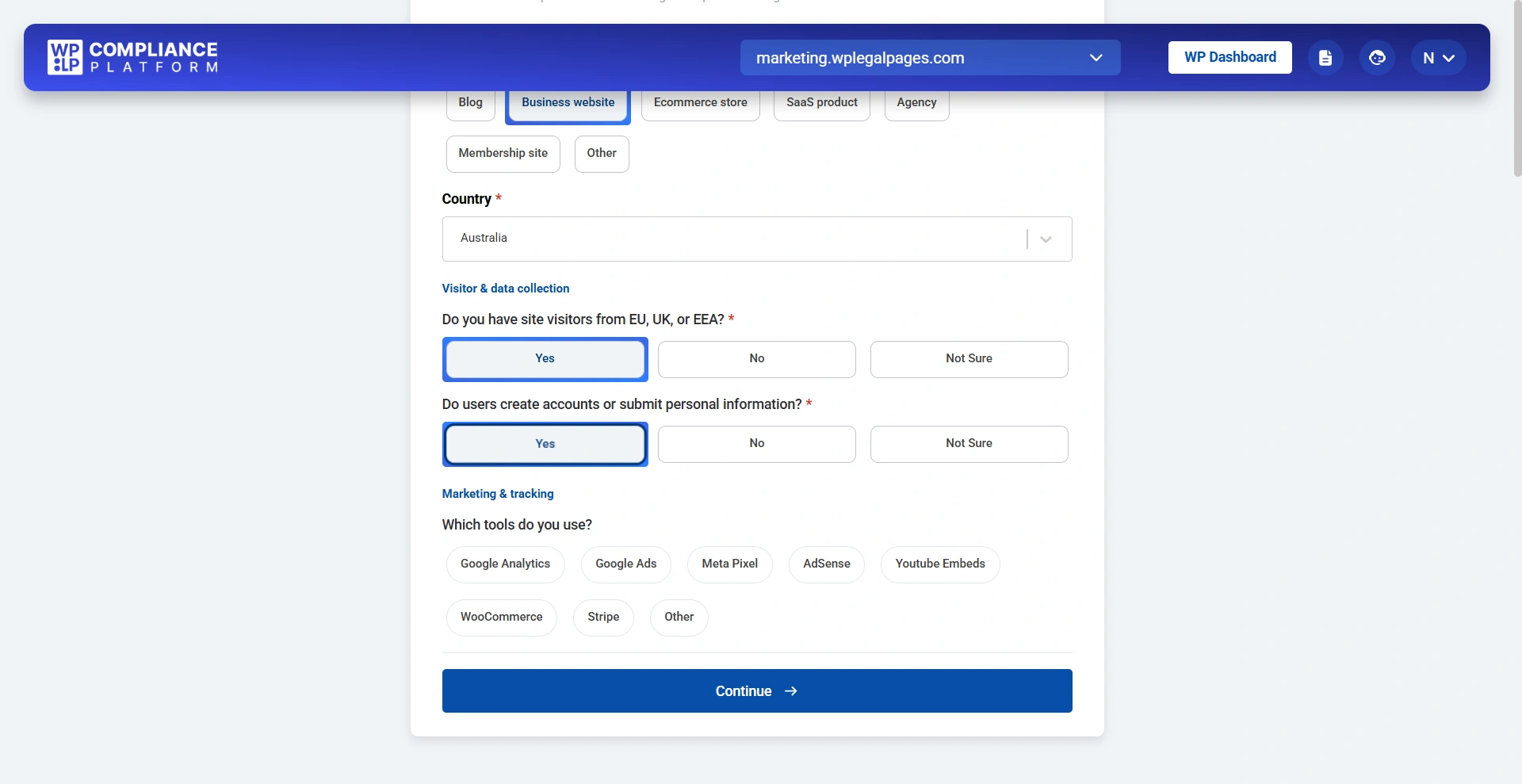
- Marketing and tracking tools used on your website
This information helps the platform determine which privacy laws and policies apply to your website.
Click Continue to proceed.
Step 2: Analyze Your Website
The WPLP Compliance Platform automatically scans your website to detect technologies and compliance requirements.
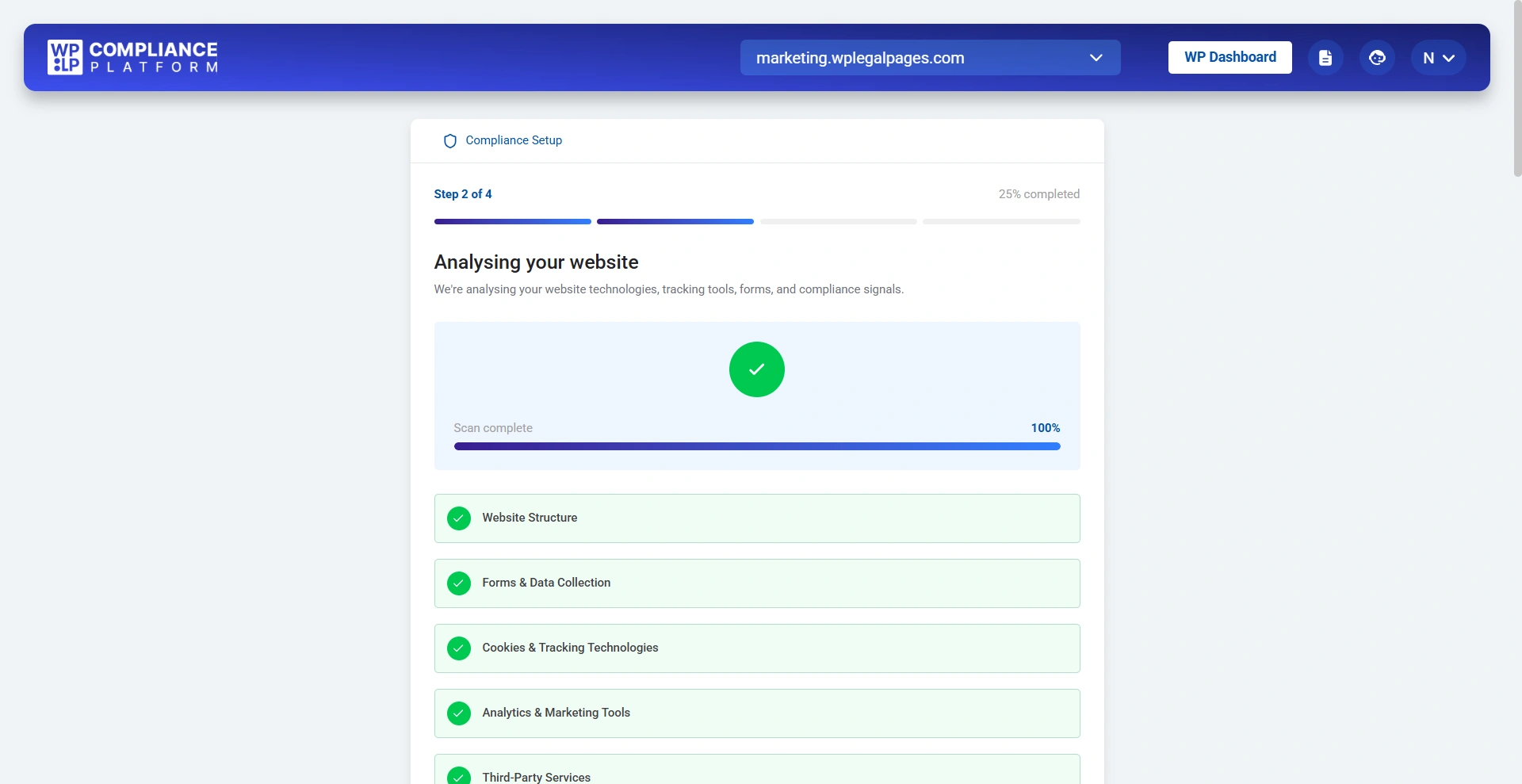
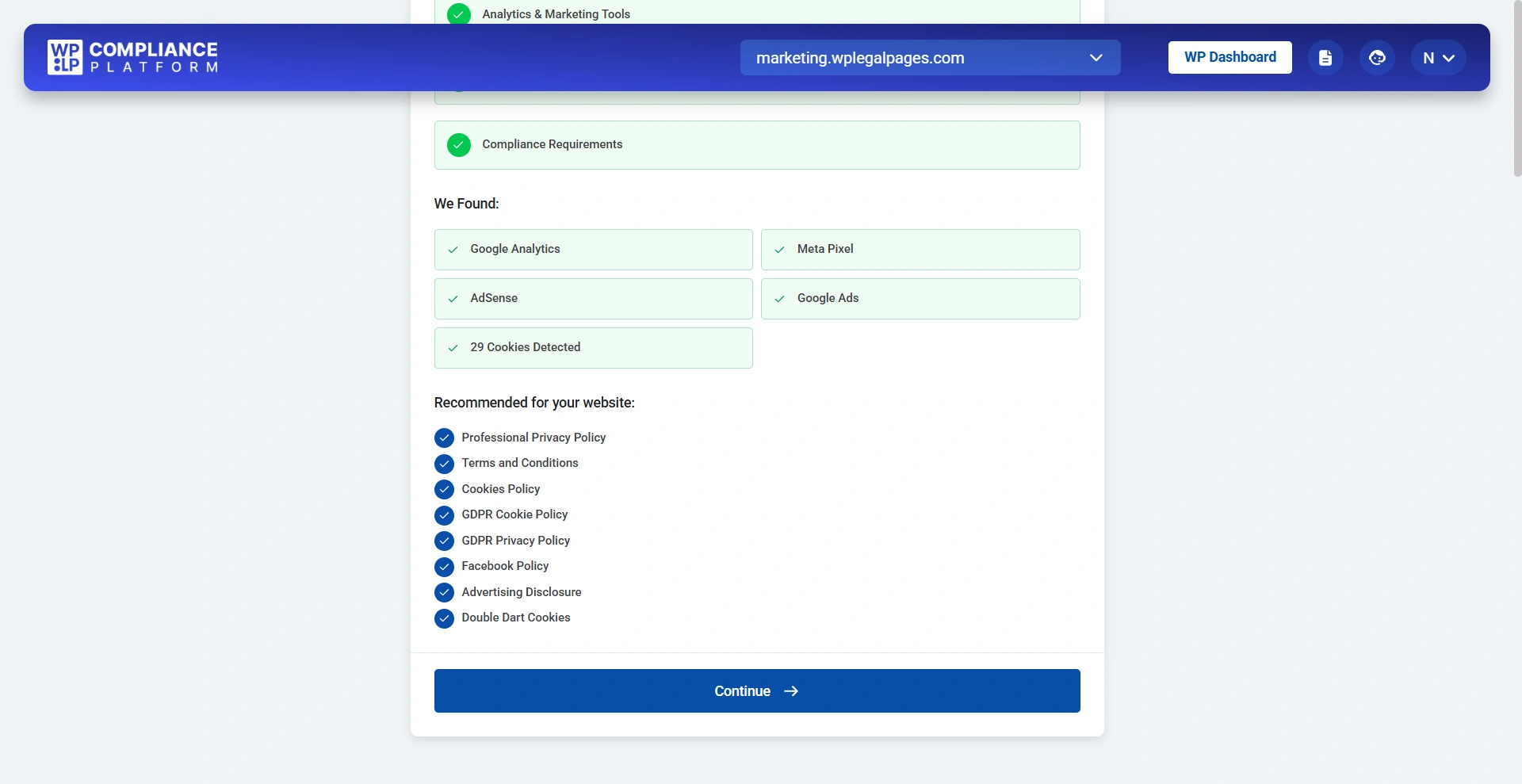
Once the scan finishes, the wizard displays everything detected on your website. Click on continue.
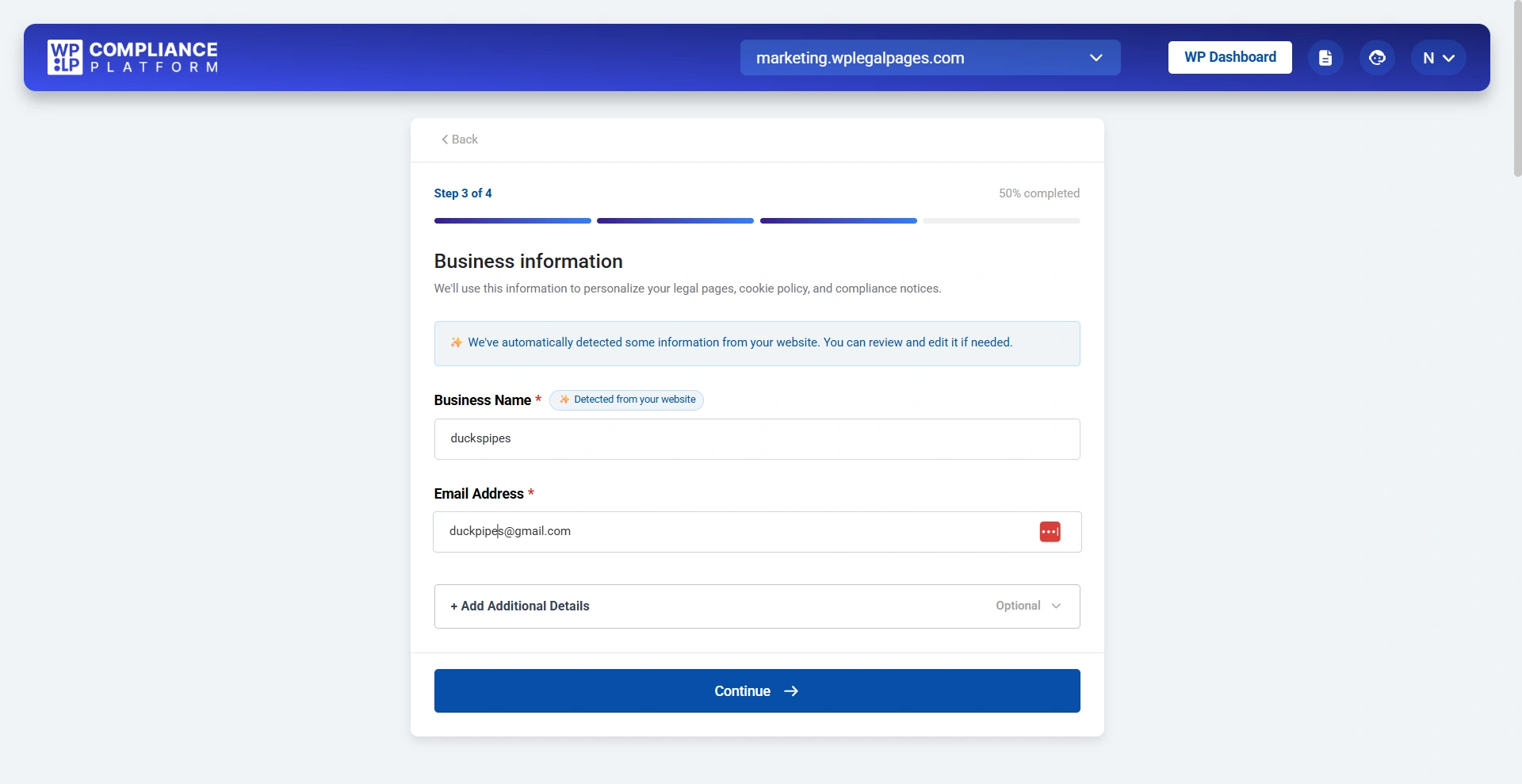
Step 3: Business Information
The wizard automatically detects information available on your website and pre-fills it whenever possible.
Information may include:
- Business Name
- Email Address
You can review and edit any detected information before continuing.
Additional business details can also be added if required.
Click Continue once the information is correct.
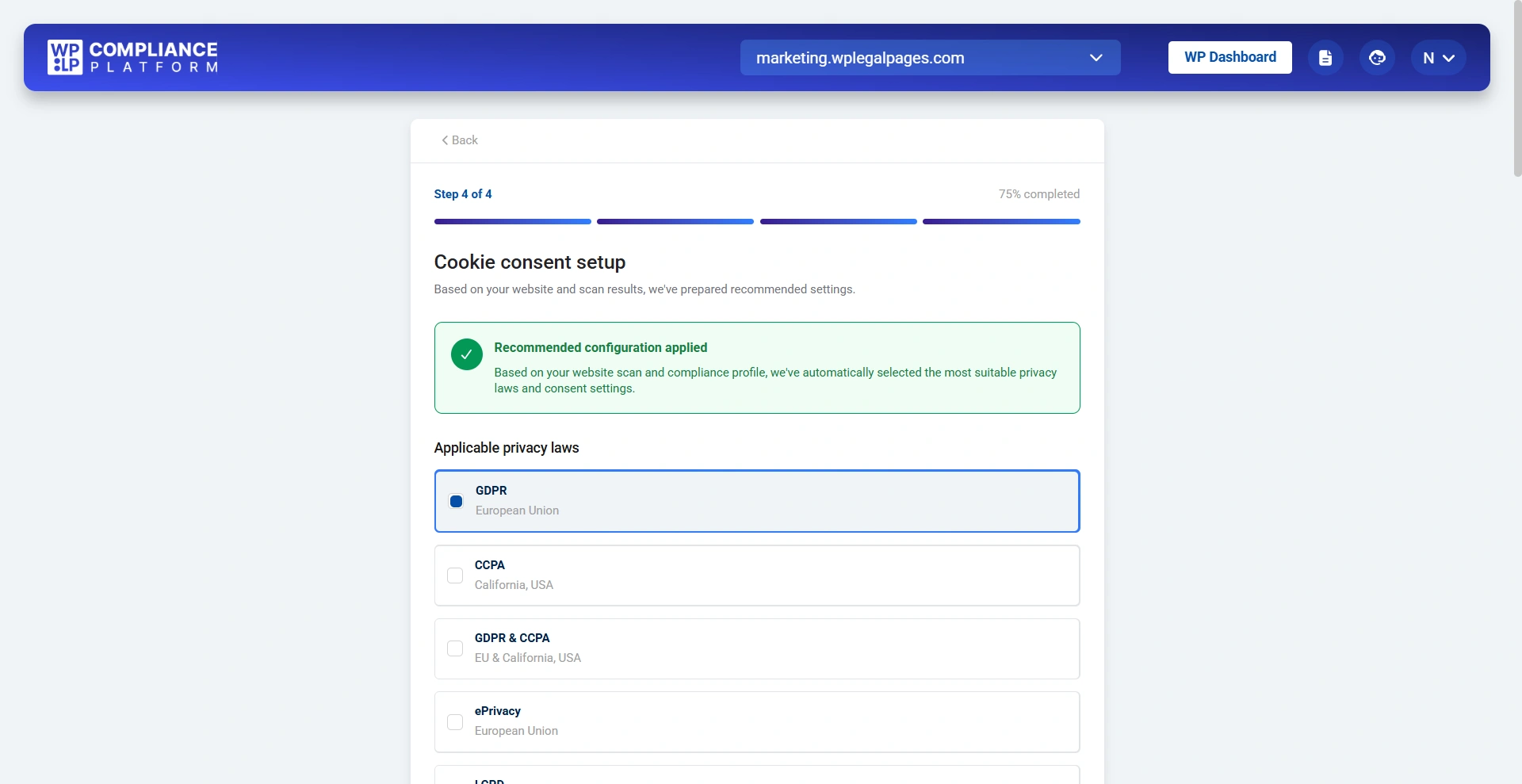
Step 4: Configure Cookie Consent
Based on your website scan and responses, WPLP automatically recommends the most suitable cookie consent configuration. Select the applicable privacy law if necessary.
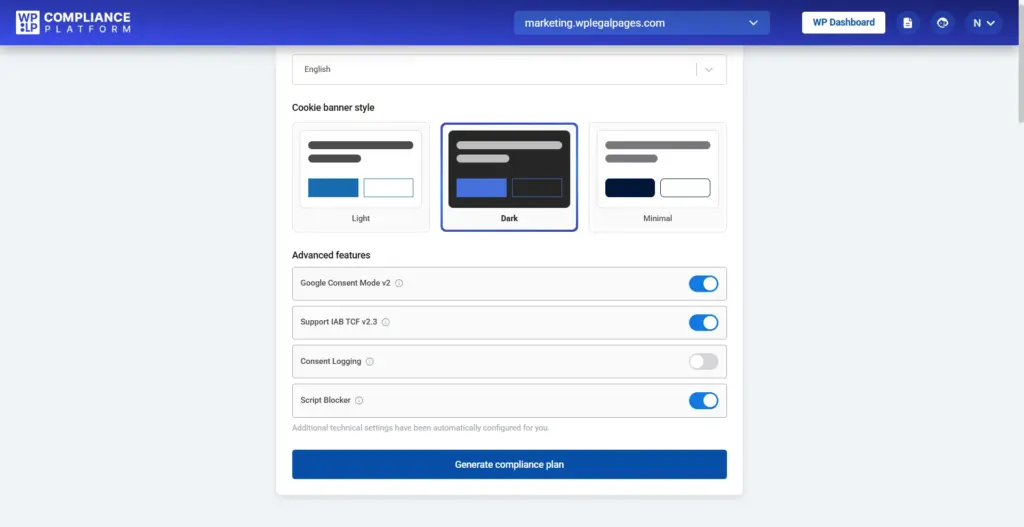
You can also customize your cookie banner by selecting the provided options.
After reviewing the recommended settings, click Generate Compliance Plan.
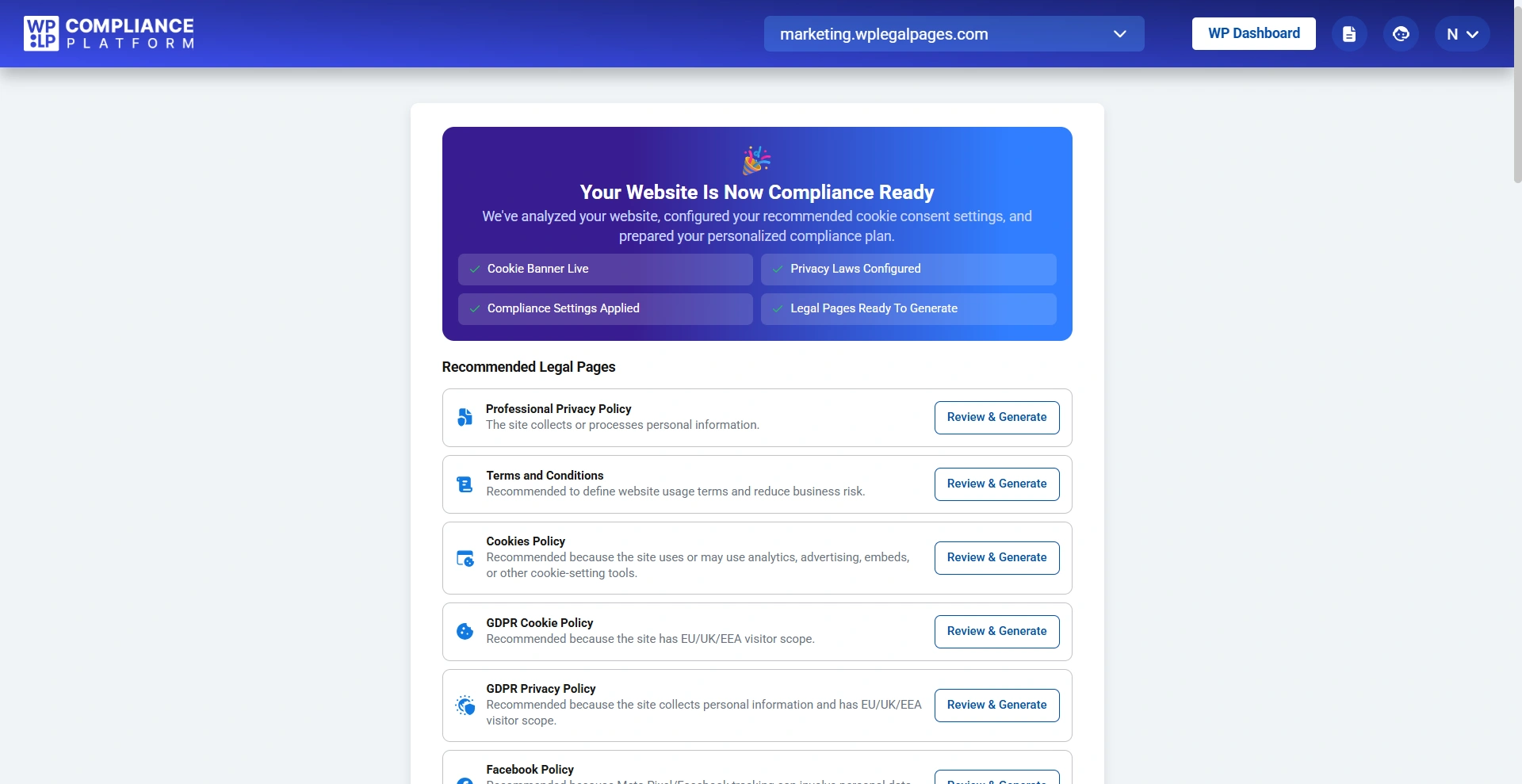
Once the compliance plan has been generated, WPLP summarizes everything that has been configured for your website.
The summary includes confirmation that:
- Cookie Banner is configured
- Privacy laws have been applied
- Compliance settings have been configured
- Legal pages are ready to generate
The wizard also displays a personalized list of recommended legal pages.
Click Review & Generate beside any policy to generate and publish it.
After completing the setup, you’ll be redirected to the WPLP Compliance Platform dashboard. Here, you’ll find a list of AI Pick policies recommended specifically for your website based on the information you provided and the website scan.
Review the policies and publish them.