WPLP Compliance Platform logo
Login
Try for Free

Overview

3
  • Getting Started
  • Setup & Configuration
  • Platform Overview

Features Walkthrough

3
  •  Cookie Consent
  • Legal pages
  • Dashboard

Guides

18
  • Cookie Banner Builder
  • What is the Right to Access?
  • What is the Right to be Forgotten
  • How To Schedule Automatic Cookie Scan
  • A/B Testing Feature
  • Implementing Google Consent V2 Mode using WPLP Compliance Platform
  • Google Consent Mode Troubleshooting with WPLP Compliance Platform
  • How to Verify if Google Consent Mode is Properly Implemented
  • Right to Data Portability Explained – What It Means & How to Comply
  • How to use Script Blocker
  • Respect Do Not Track & Global Privacy Control
  • How to show Third-Party Policy Data on Your Website
  • How to Enable DSAR
  • How to create an Affiliate Disclosure Page
  • How to show the WPLP Block in Gutenberg.
  • How to Make an Announcement Banner for Legal Pages
  • How to Show Age Verification Pop-up on The Website
  • How to add Legal Page in Footer

Troubleshooting & Support

1
  • Common Issues & Solutions
View Categories
  • Home
  • Docs
  • WPLP Documentation
  • Guides
  • Cookie Banner Builder

Cookie Banner Builder

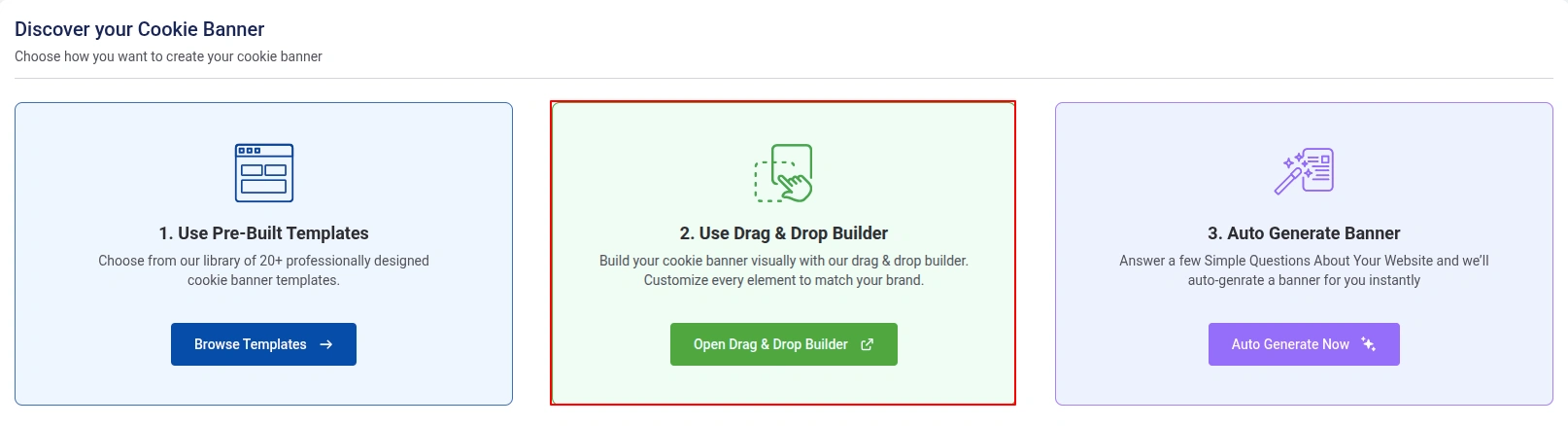
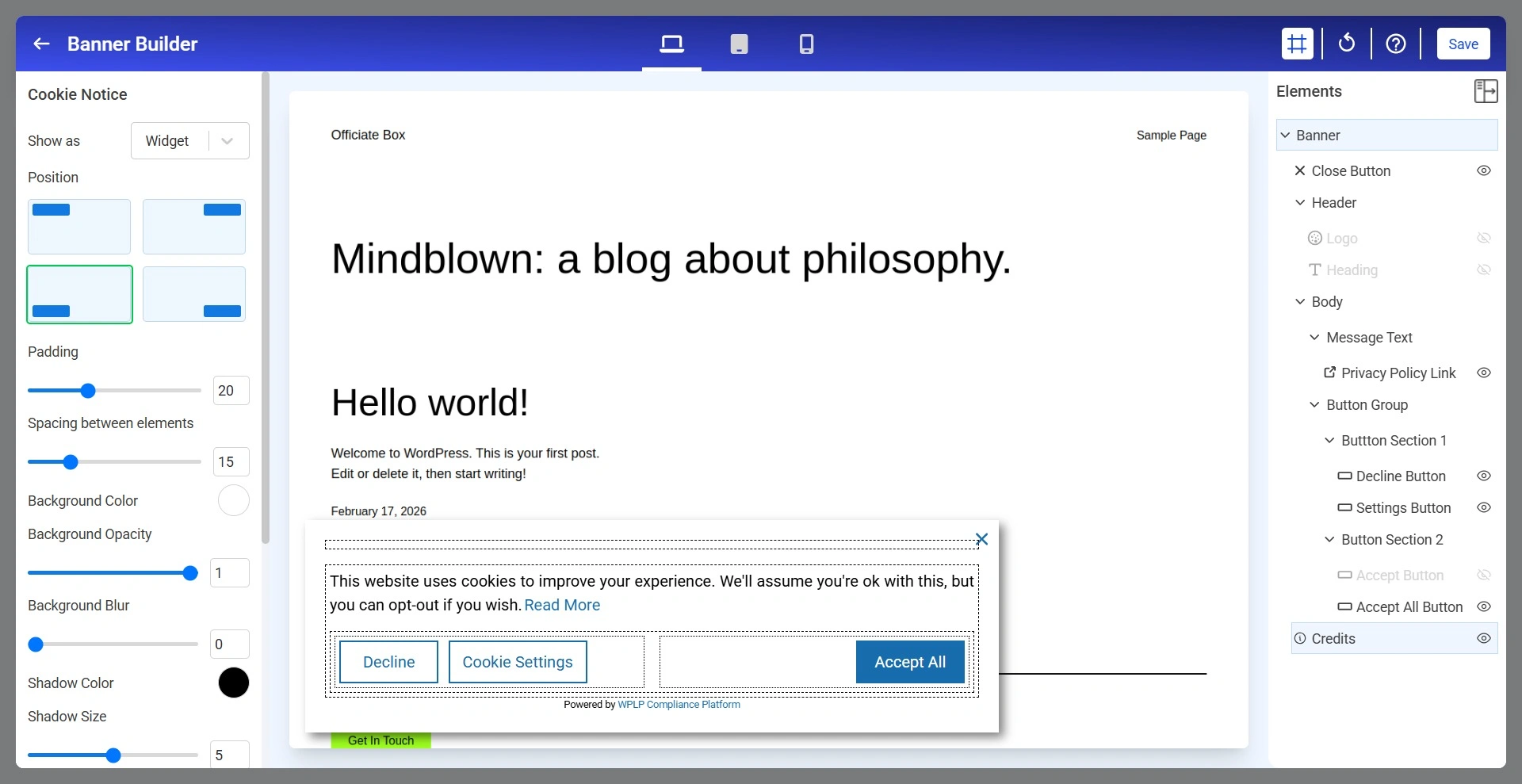
The Cookie Banner Builder allows you to visually create, customize, and manage cookie consent banners without writing code. Using the live preview and drag-and-drop interface, you can configure banner layouts, consent messages, privacy policy links, buttons, colors, spacing, typography, and responsive behavior.

To access the Cookie Settings section:

app.wplegalpages → Cookie Consent → Cookie Settings → Scroll Down

Banner Builder

1. Cookie Notice

The Cookie Notice section controls the overall appearance and positioning of the cookie banner.

cookie banner builder

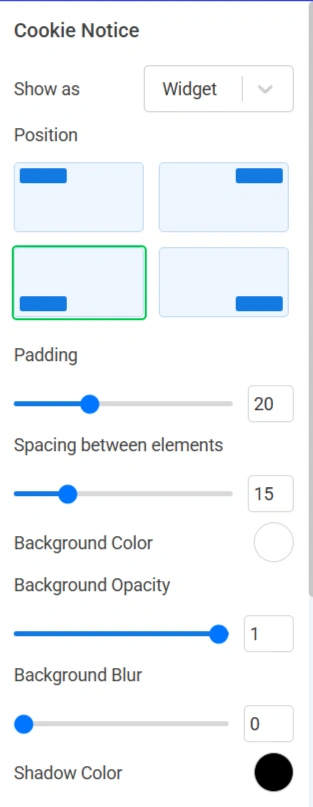
Below are the Cookie Notice settings.

Cookie Notice setting 1
  • Show As: Determines how the cookie notice is displayed.
  • Position: Controls where the cookie notice appears on the website.
  • Padding: Controls the internal spacing between the content and the edges of the banner.
  • Spacing Between Elements: Controls the space between banner elements such as logo, heading or message text.
  • Background Color: Sets the background color of the cookie notice.
  • Background Opacity: Controls the transparency of the banner background.
  • Background Blur: Applies a blur effect behind the cookie notice.
  • Shadow Color: Defines the color of the banner shadow.
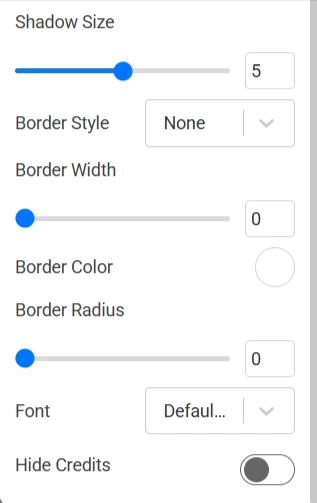
Cookie Notice setting 2
  • Shadow Size: Controls the intensity and size of the shadow surrounding the banner.
  • Border Style: Controls the border appearance.
  • Border Width: Adjusts the thickness of the border.
  • Border Color: Defines the color of the border surrounding the banner.
  • Border Radius: Rounds the corners of the cookie notice.
  • Font: Selects the font family used throughout the cookie notice.

2. Close Button

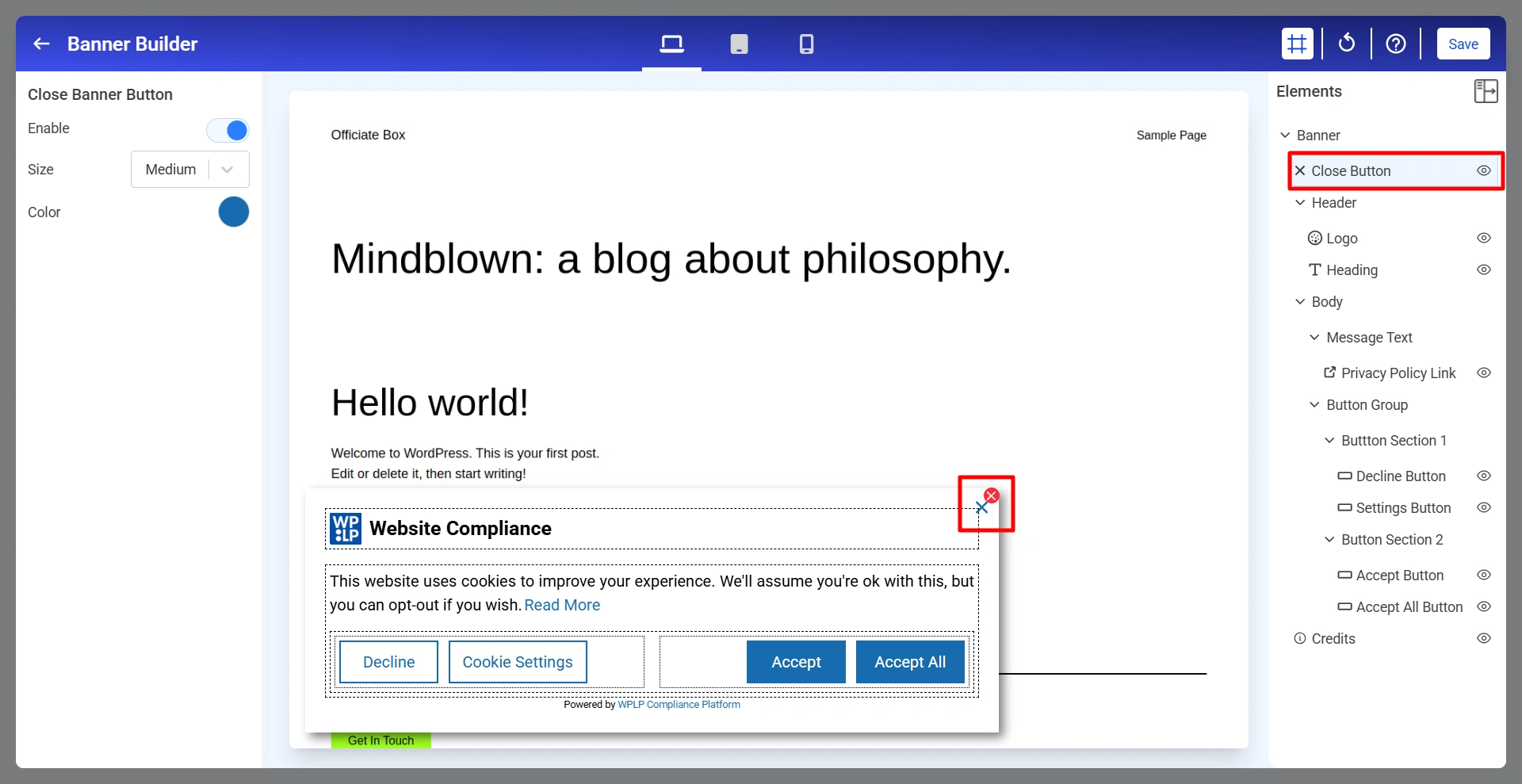
The Close Banner Button allows visitors to dismiss the cookie notice without interacting with the consent buttons.

Close Banner button
  • Enable: Show or hide the close button (×) in the cookie notice.
  • Size: Controls the size of the close button.
  • Color: Defines the color of the close button icon.

3. Logo For The Cookie Banner

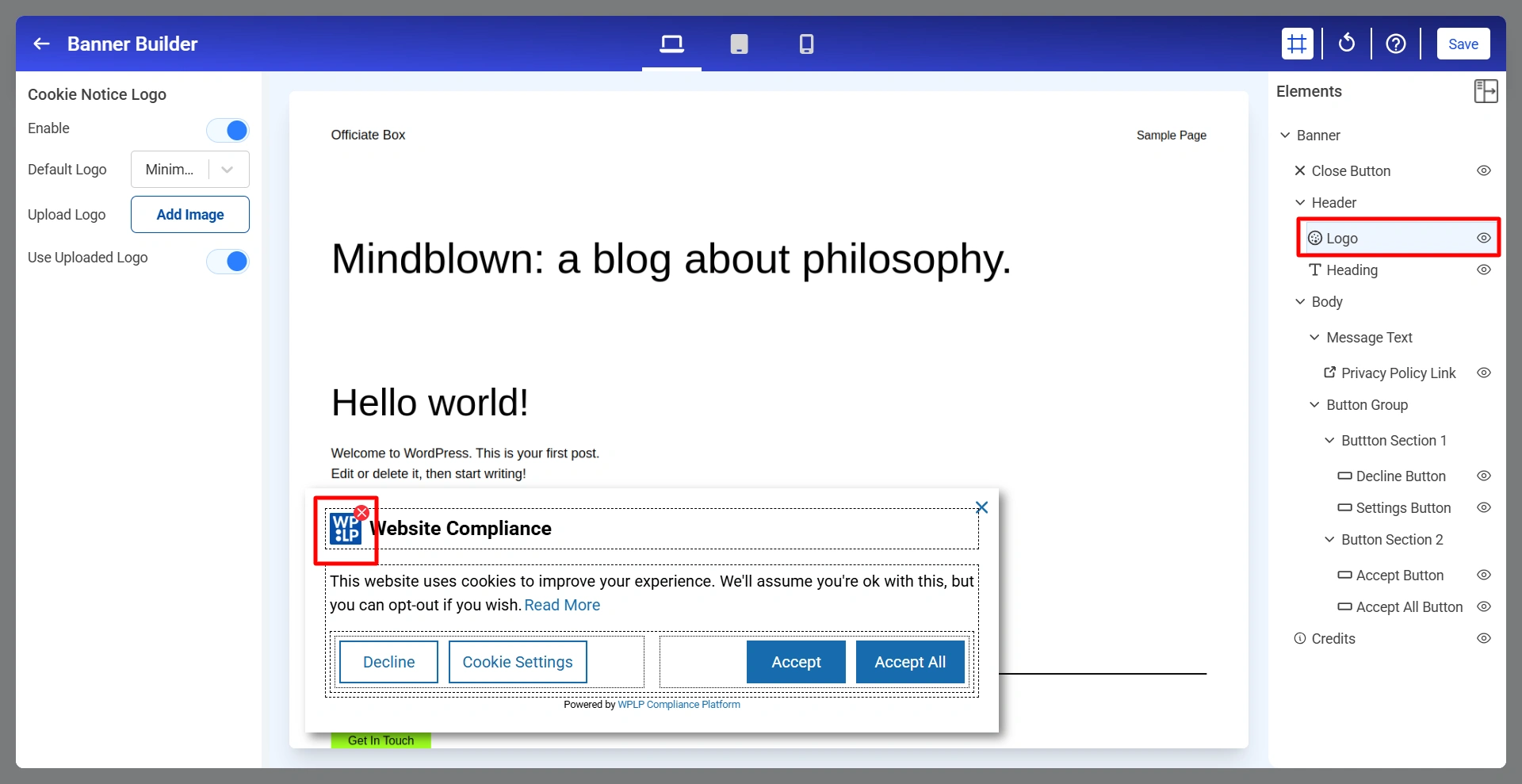
The logo appears in the header section of the cookie notice and helps reinforce your website branding.

Cookie Notice Logo
  • Enable: Show or hide the logo.
  • Default Logo: Select one of the available built-in logo styles.
  • Upload Logo: Upload your own custom logo image.
  • Use Uploaded Logo: When enabled, the uploaded logo replaces the default logo.

4. Heading Of The Cookie Banner

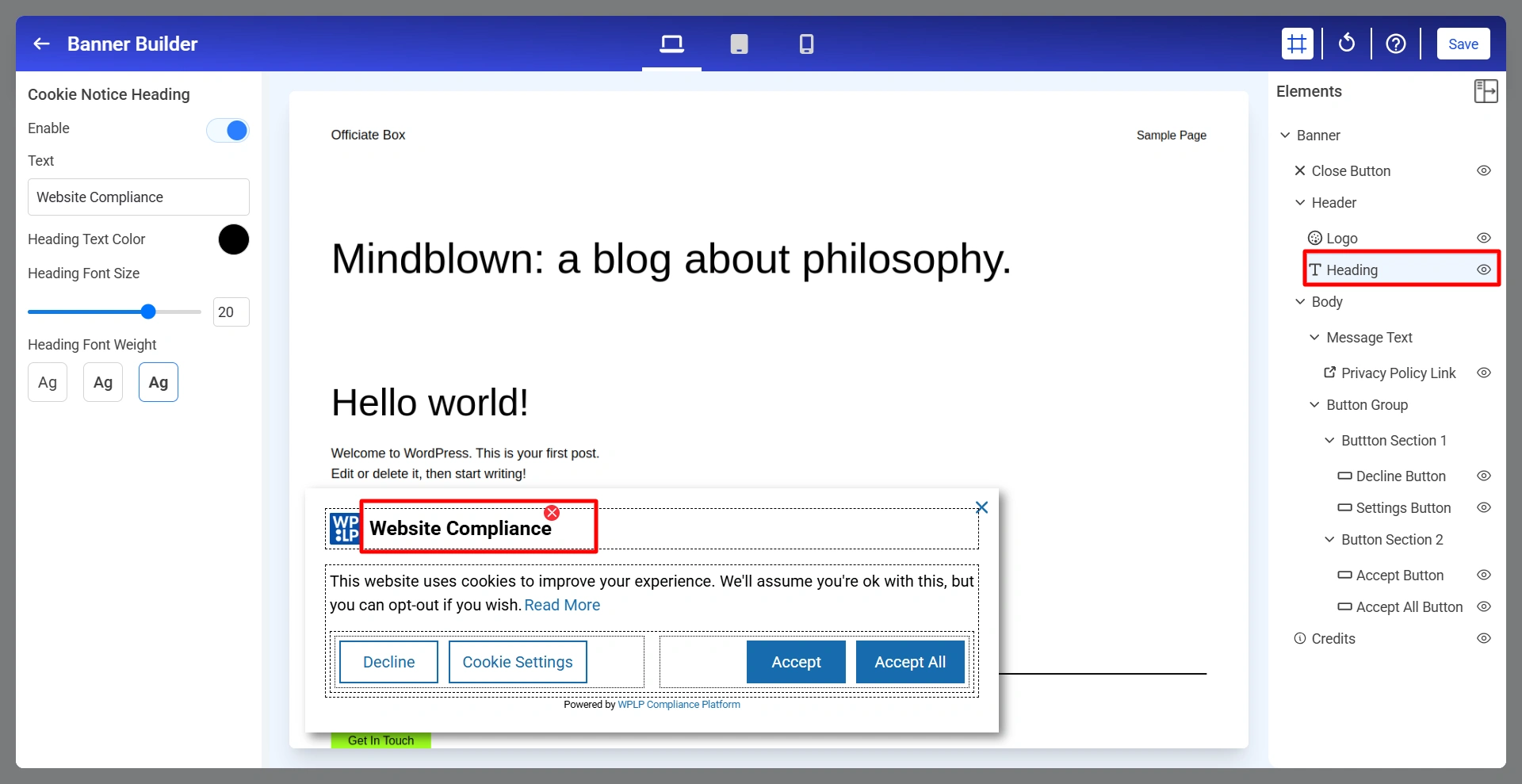
The heading serves as the main title of your cookie notice.

Cookie Notice Heading
  • Enable: Show or hide the heading.
  • Text: Defines the heading text displayed to visitors.
  • Heading Text Color: Controls the color of the heading text.
  • Heading Font Size: Adjusts the heading size.
  • Heading Font Weight: Controls the thickness of the heading text.

5. Message Text For Banner

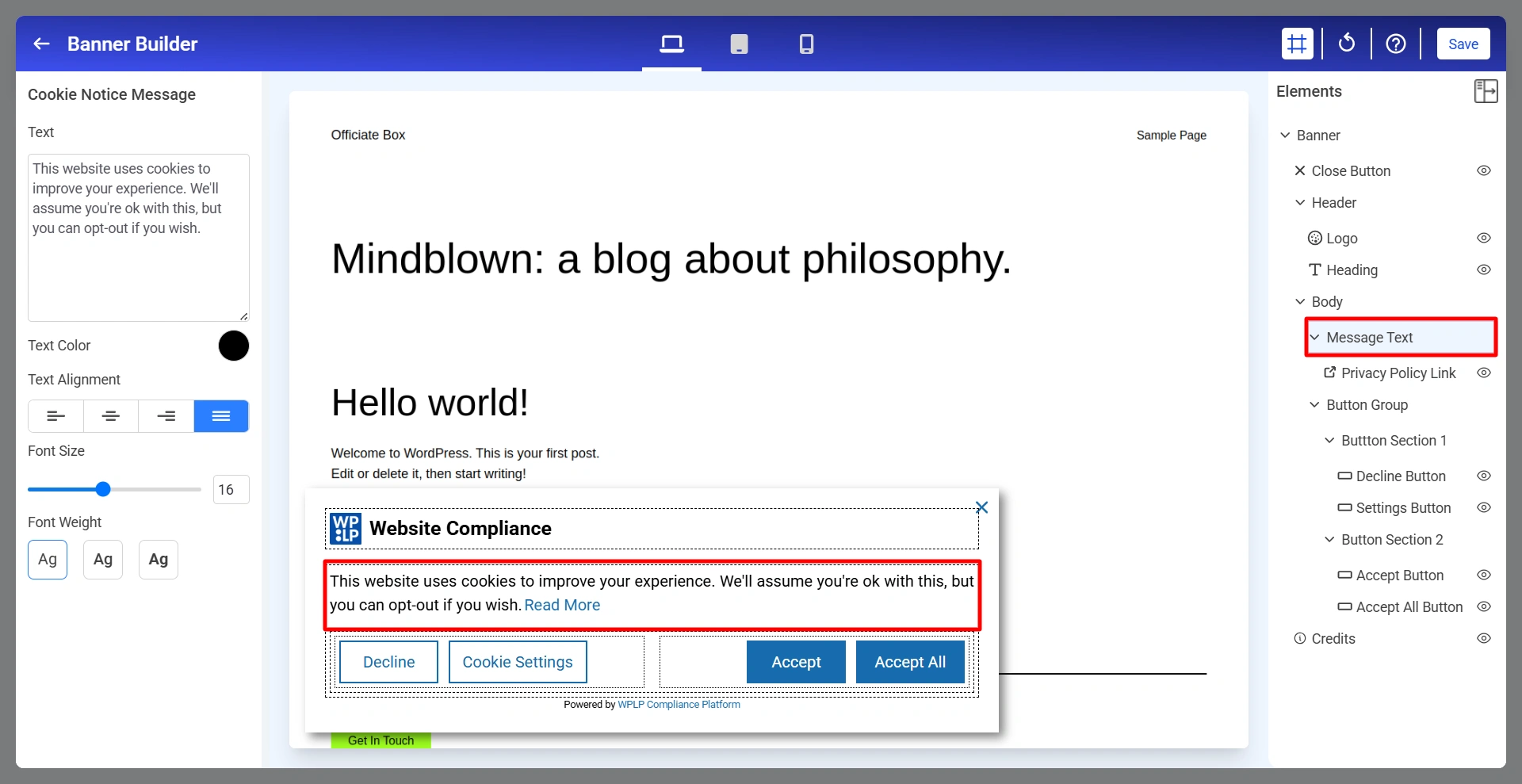
The cookie notice message explains how cookies are used on the website.

Cookie Notice Message
  • Text: Enter the message displayed to visitors.
  • Text Color: Defines the color of the message text.
  • Text Alignment: Controls how the message is aligned.
  • Font Size: Adjusts the size of the message text.
  • Font Weight: Controls text thickness.

6. Privacy Policy Link

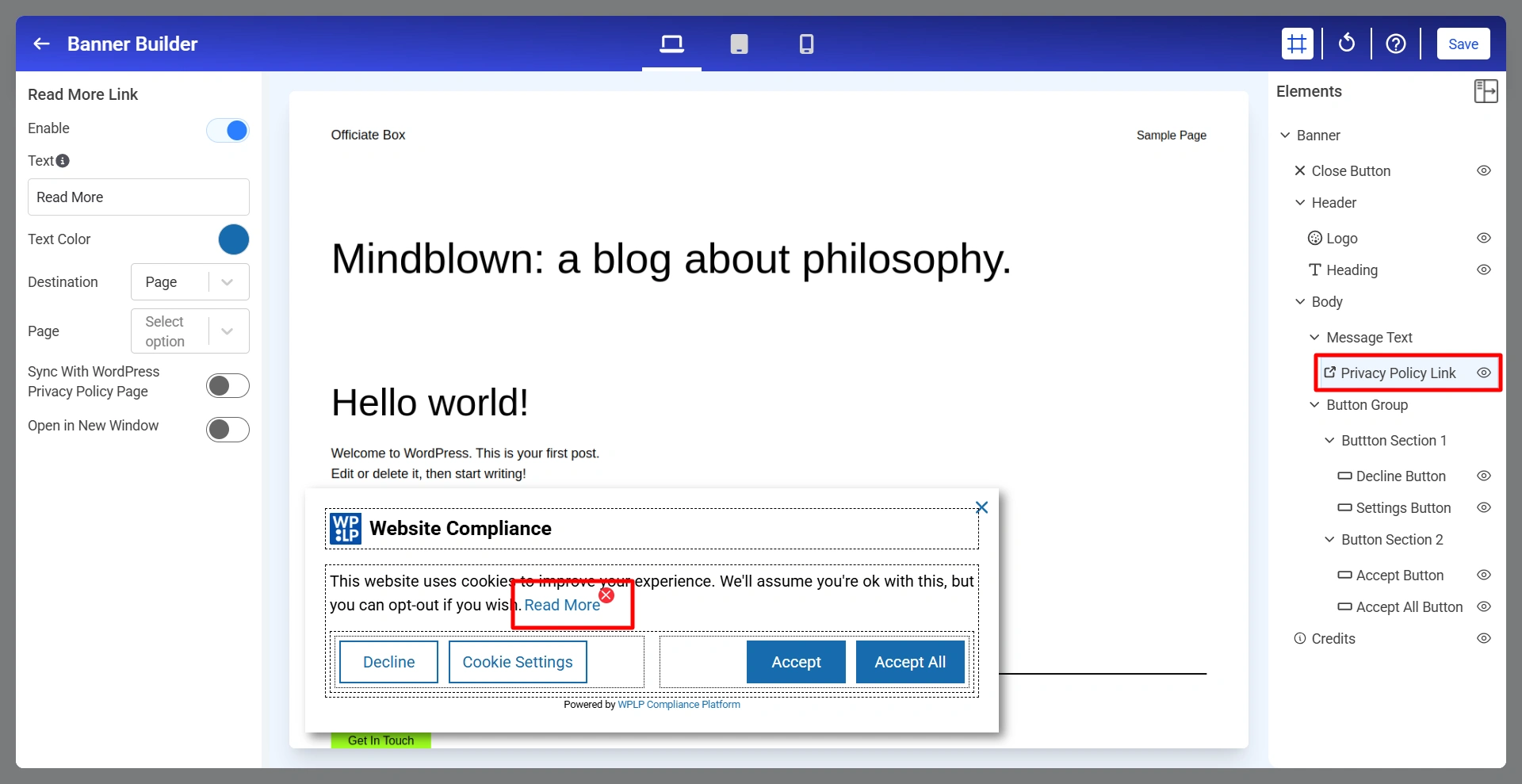
Allows visitors to access your Privacy Policy directly from the cookie banner. To customize the Privacy Policy Link, click Privacy Policy Link from the Elements panel.

Read More Link
  • Enable: Turn the Privacy Policy Link on or off.
  • Text: Defines the text displayed for the link.
  • Text Color: Controls the color of the link text.
  • Destination: Determines where the link directs visitors.
  • Page: When the destination is set to Page, select the page visitors should be redirected to after clicking the link.
  • Sync With WordPress Privacy Policy Page: Automatically uses the Privacy Policy page configured in WordPress.
  • Open In New Window: Controls whether the selected page opens in a new browser tab.

7. Decline Button

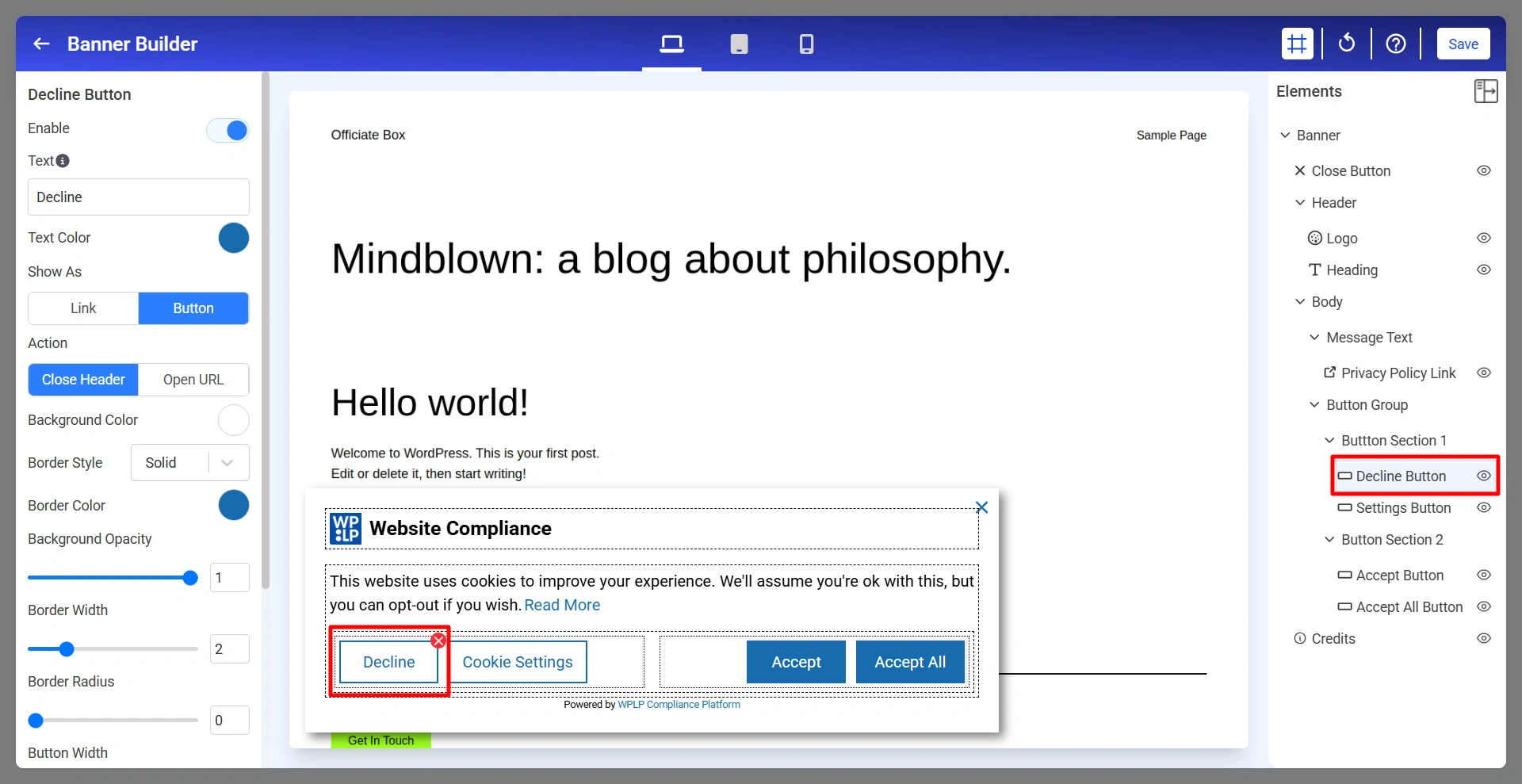
The Decline Button allows visitors to reject cookies according to your consent configuration.

Decline Button

Below are the Decline Button settings.

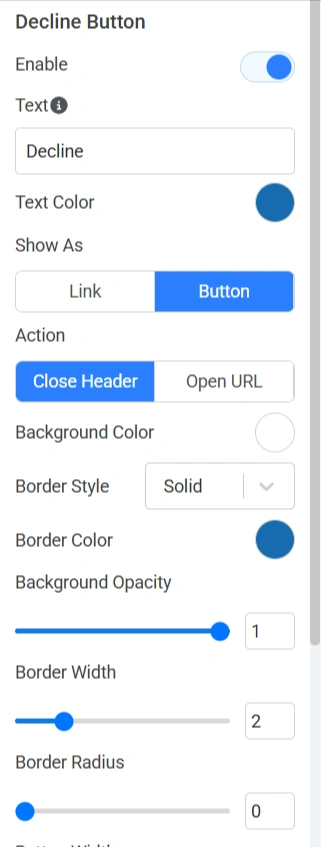
Decline Button setting - 1
  • Enable: Show or hide the Decline button.
  • Text: Defines the label displayed on the button.
  • Text Color: Controls the color of the button text.
  • Show As: Determines how the action is displayed.
  • Action: Determines what happens when the button is clicked.
  • Background Color: Sets the button background color.
  • Border Style: Controls the border appearance.
  • Background Opacity: Adjusts the transparency of the button background.
  • Border Width: Controls border thickness.
  • Border Radius: Rounds the corners of the button.
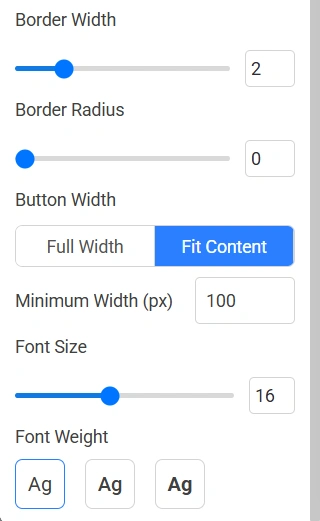
Decline Button setting 2
  • Button Width: Determines button sizing.
  • Minimum Width (px): Sets the minimum width of the button.
  • Font Size: Adjusts the button text size.
  • Font Weight: Controls the thickness of the button text.

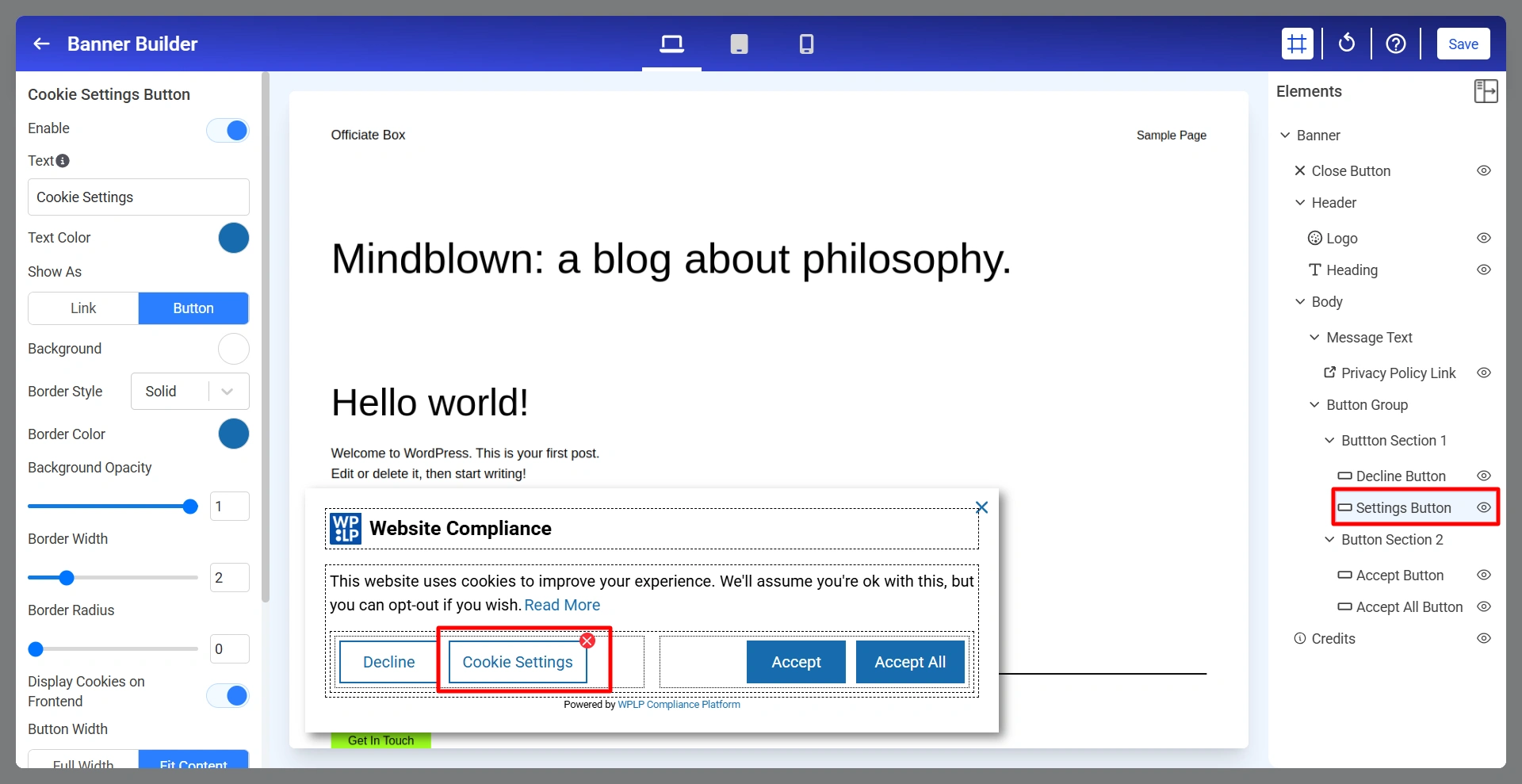
8. Settings Buttons

The Cookie Settings Button allows visitors to access detailed cookie preferences and manage consent choices.

Cookie Settings Button

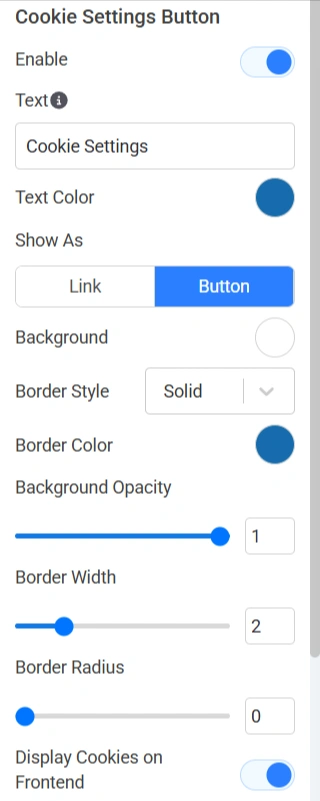
Below are the Cookie Setting Buttons.

Cookie Settings Button - 1
  • Enable: Show or hide the Cookie Settings button.
  • Text: Defines the button label.
  • Text Color: Controls button text color.
  • Show As: Choose whether the control appears as link or button.

  • Background: Defines the button background color.
  • Border Style: Controls border appearance.
  • Border Color: Sets the border color.
  • Background Opacity: Adjusts background transparency.
  • Border Width: Controls border thickness.
  • Border Radius: Rounds button corners.
  • Display Cookies on Frontend: Displays available cookie categories to visitors when managing preferences.
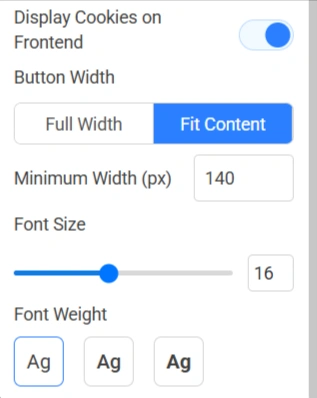
Cookie Settings Button - 2
  • Button Width: Controls overall button width.
  • Minimum Width (px): Sets the minimum width allowed for the button.
  • Font Size: Controls text size.
  • Font Weight: Controls text thickness.

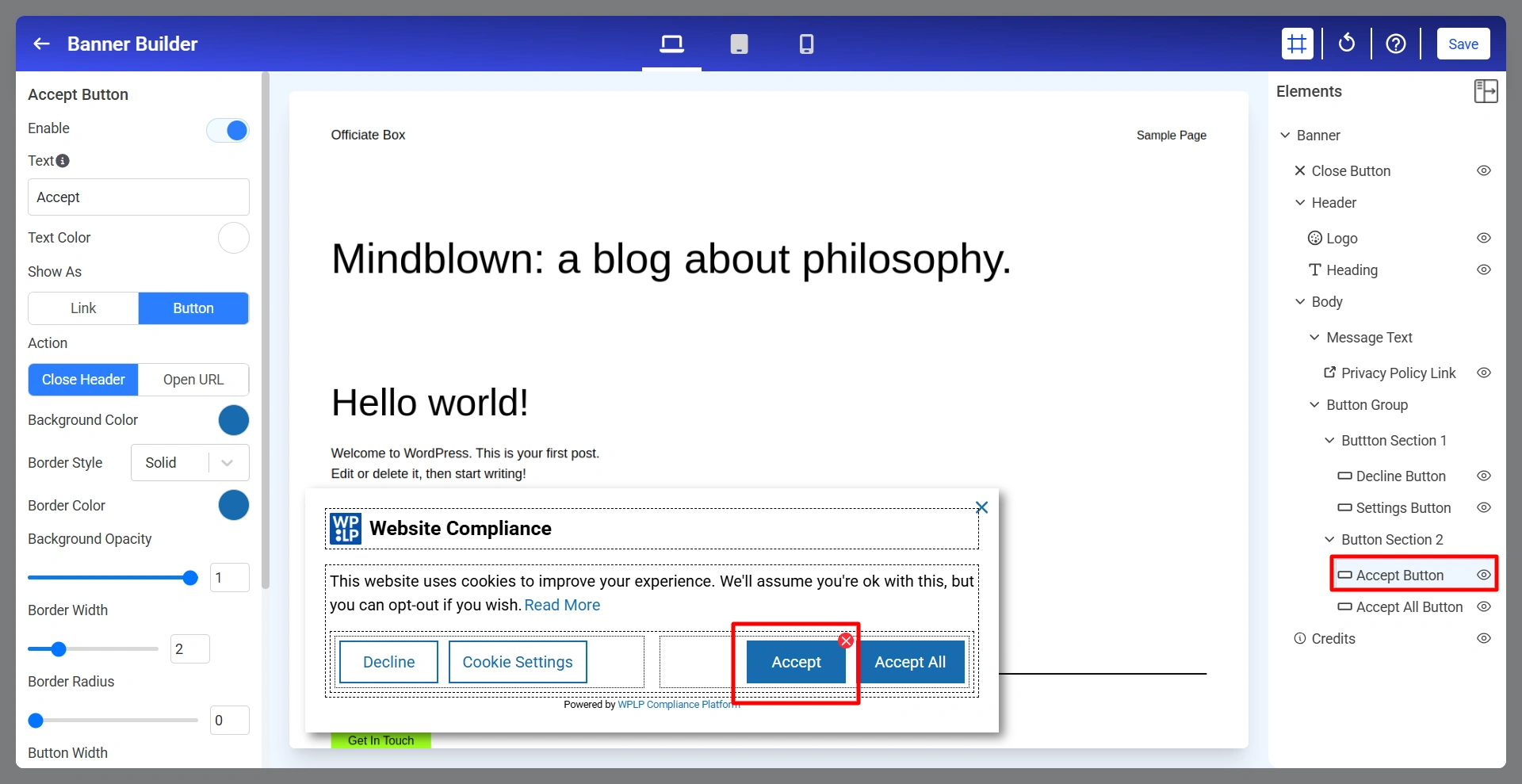
9. Accept Button

The Accept Button allows visitors to provide consent based on your configured cookie settings.

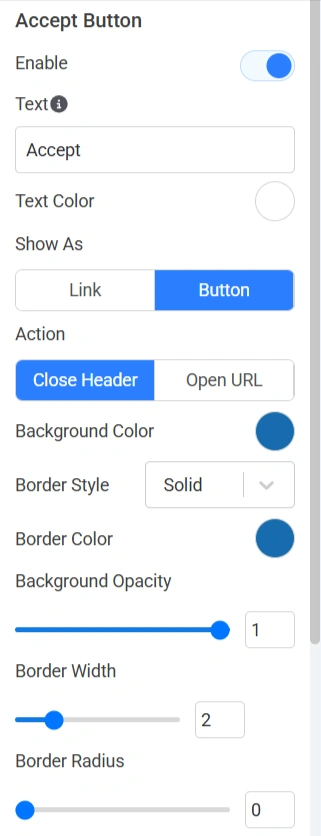
Accept Button

Below are the Accept Button settings.

accept button setting 1
  • Enable: Show or hide the Accept button.
  • Text: Defines the button label.
  • Text Color: Controls the button text color.
  • Show As: Display as link or button.
  • Action: Determines what happens after the button is clicked.
  • Background Color: Sets the button background color.
  • Border Style: Controls border appearance.
  • Border Color: Defines border color.
  • Background Opacity: Controls transparency.
  • Border Width: Sets border thickness.
  • Border Radius: Rounds button corners.
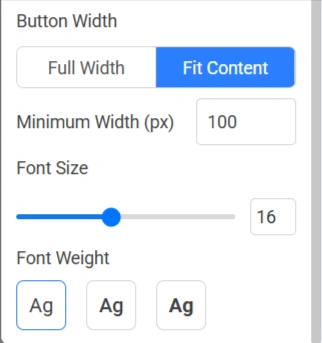
accpet button setting - 2
  • Button Width: Choose whether you want full width or fit content.
  • Minimum Width (px): Defines the minimum width of the button.
  • Font Size: Adjusts text size.
  • Font Weight: Controls text thickness.

10. Accept All Button

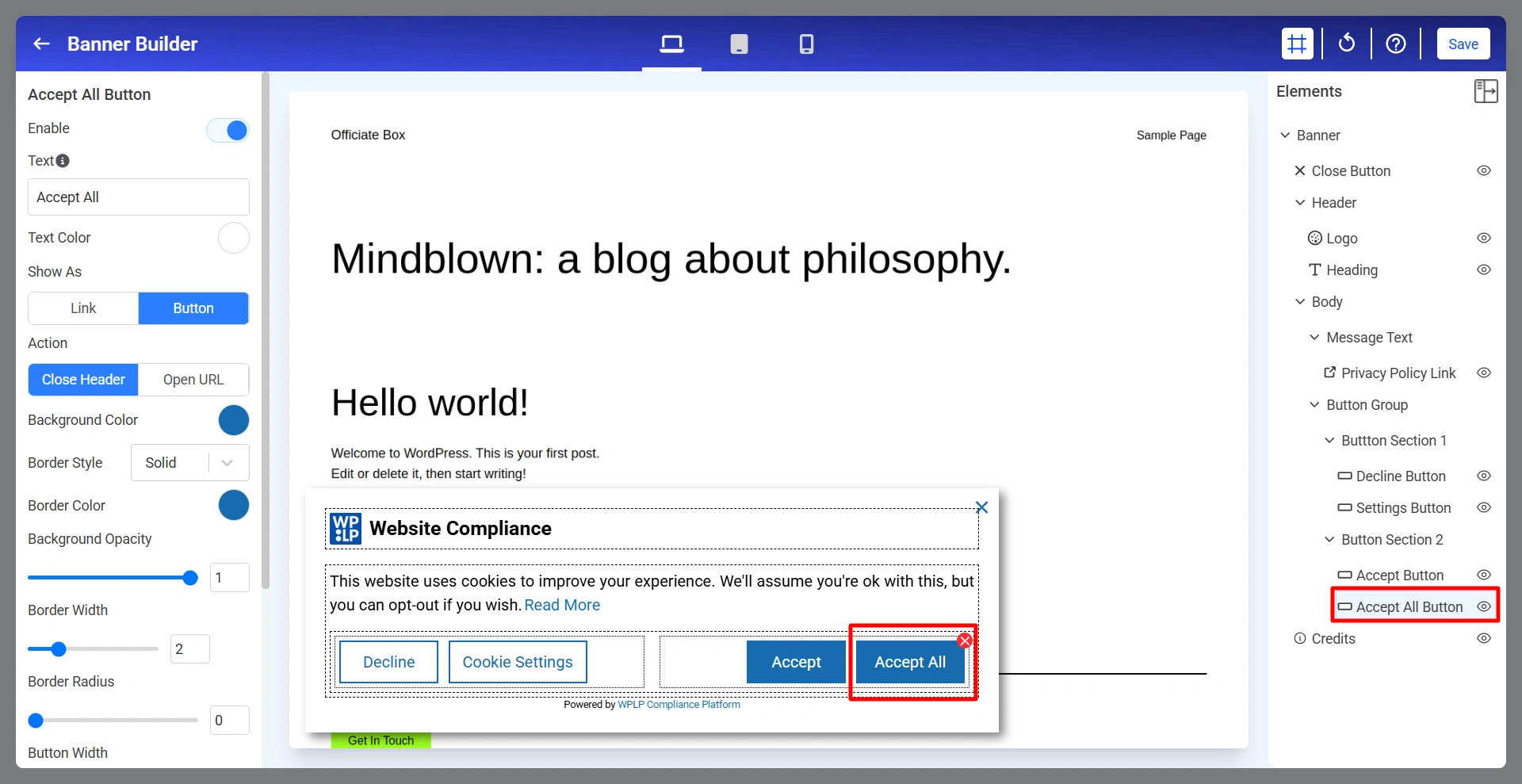
The Accept All Button allows visitors to immediately consent to all available cookie categories.

Accept All Button

Below are the Accept All settings.

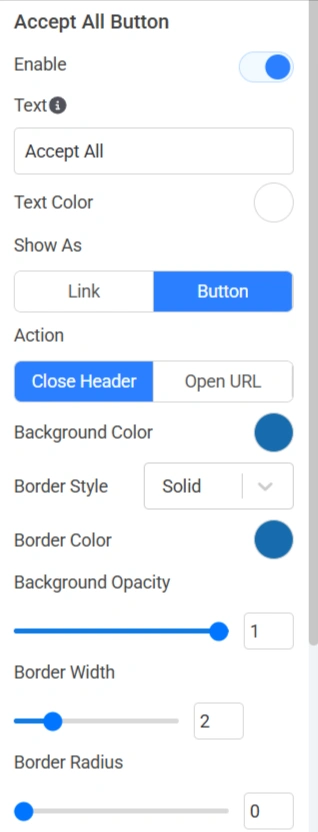
Accept All Button setting 1
  • Enable: Show or hide the Accept All button.
  • Text: Defines the button label.
  • Text Color: Controls button text color.
  • Show As: Choose whether you want it as a link or a button.
  • Action: Determines what happens after clicking the button.
  • Background Color: Sets button background color.
  • Border Style: Controls border appearance.
  • Border Color: Defines border color.
  • Background Opacity: Adjusts transparency.
  • Border Width: Controls border thickness.
  • Border Radius: Rounds button corners.
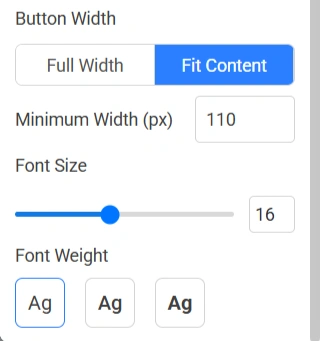
Accept All Button setting 2
  • Button Width: Choose full width or fit content
  • Minimum Width (px): Defines the minimum button width.
  • Font Size: Adjusts button text size.
  • Font Weight: Controls text thickness.

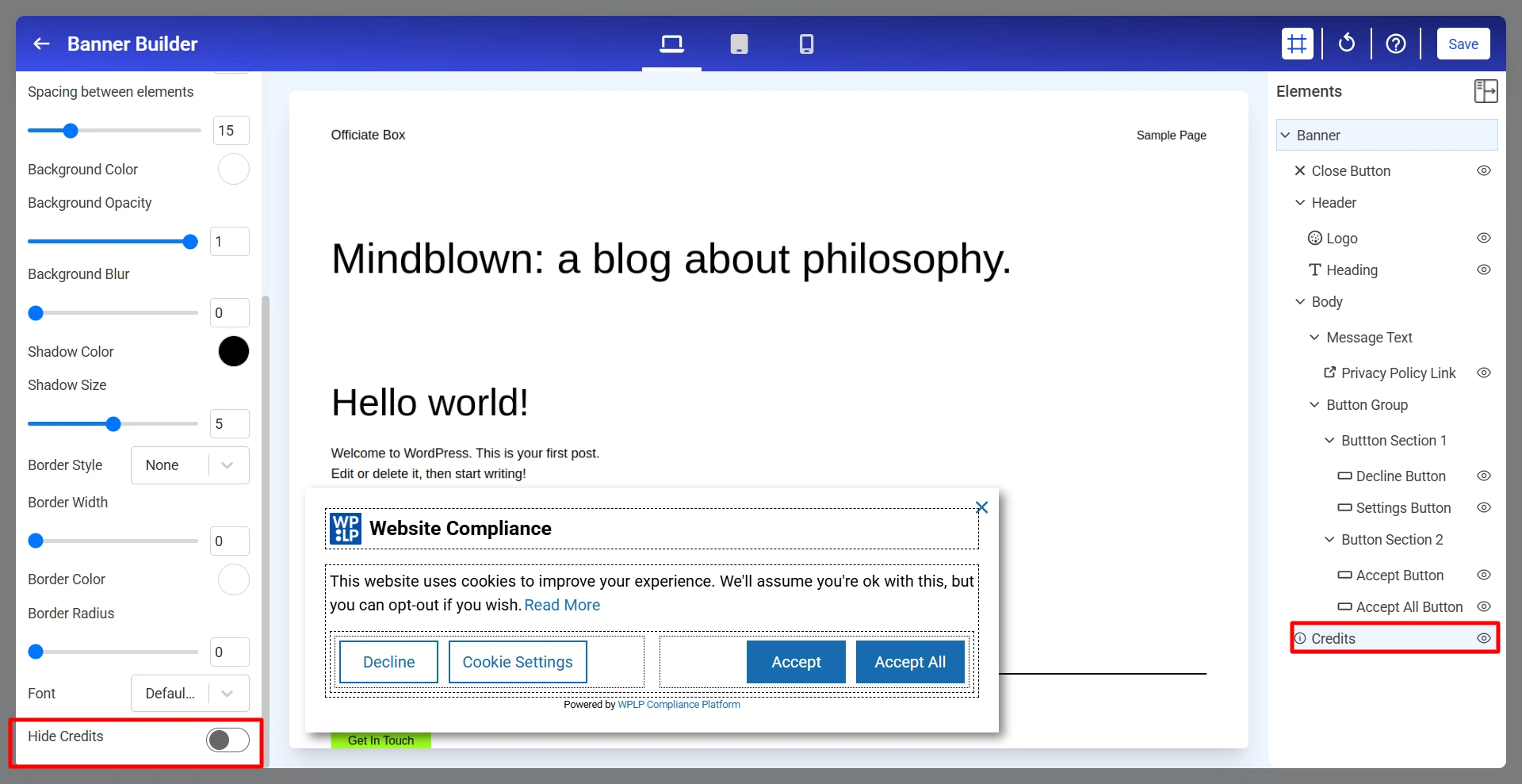
11. Credits

The Credits section controls the “Powered by WPLP Compliance Platform” attribution displayed in the cookie notice.

Updated on June 19, 2026

What are your Feelings

  • Happy
  • Normal
  • Sad

Share This Article :

  • Facebook
  • X
  • LinkedIn
  • Pinterest
How to add Legal Page in FooterWhat is the Right to Access?

Our Products

  • Free WP Legal Pages
  • Free WP Cookie Consent
  • Comparison
  • Responsive Theme
  • Responsive Blocks
  • Responsive Addons For Elementor

Company

  • About Us
  • Blog
  • Affiliate Program
  • Refund Policy
  • Privacy Policy
  • GDPR Privacy Policy
  • GDPR Cookie Policy
  • Terms of Use

Support

  • Documentation
  • Bug Bounty Program
  • Changelog
  • Contact Us
IAB CMP Logo
Google Certified CMP Badge
Visa logo
Mastercard logo
Amex digital logo
Apple pay logo
Apple pay logo - 2
Google pay logo
X-twitter Youtube Instagram
Copyright © 2010-2026 HB Digital Inc