
This section will guide you through installing, activating, and setting up the WPLP Compliance Platform on your WordPress site. By the end, you’ll have the plugin running with your subscription connected and ready for configuration.
Installation #
1. From WordPress Dashboard #
Log in to your WordPress Admin panel. Go to Plugins > Add Plugins.
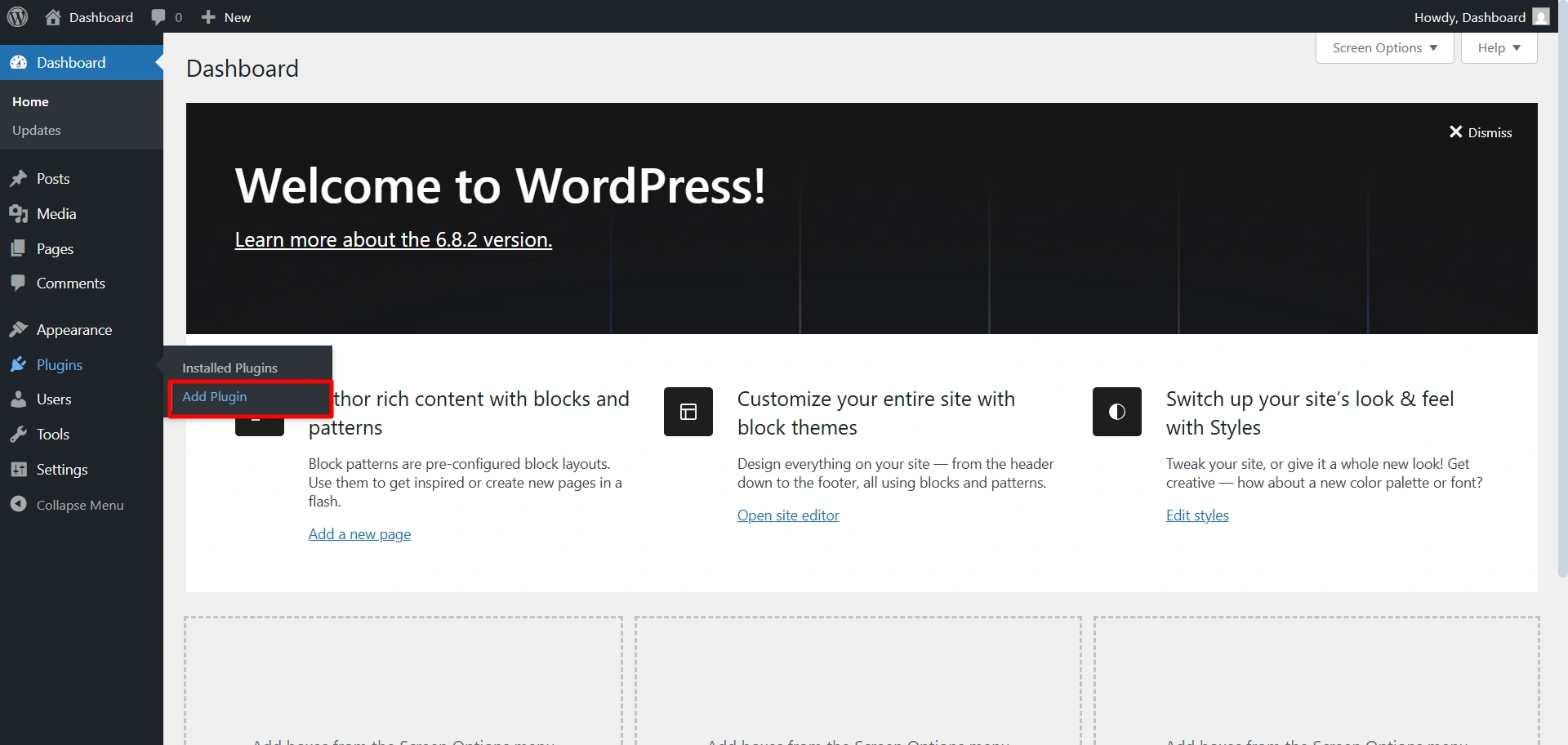
In the search bar, type WPLegalPages. Install Cookie Consent Manager for the cookie banner.
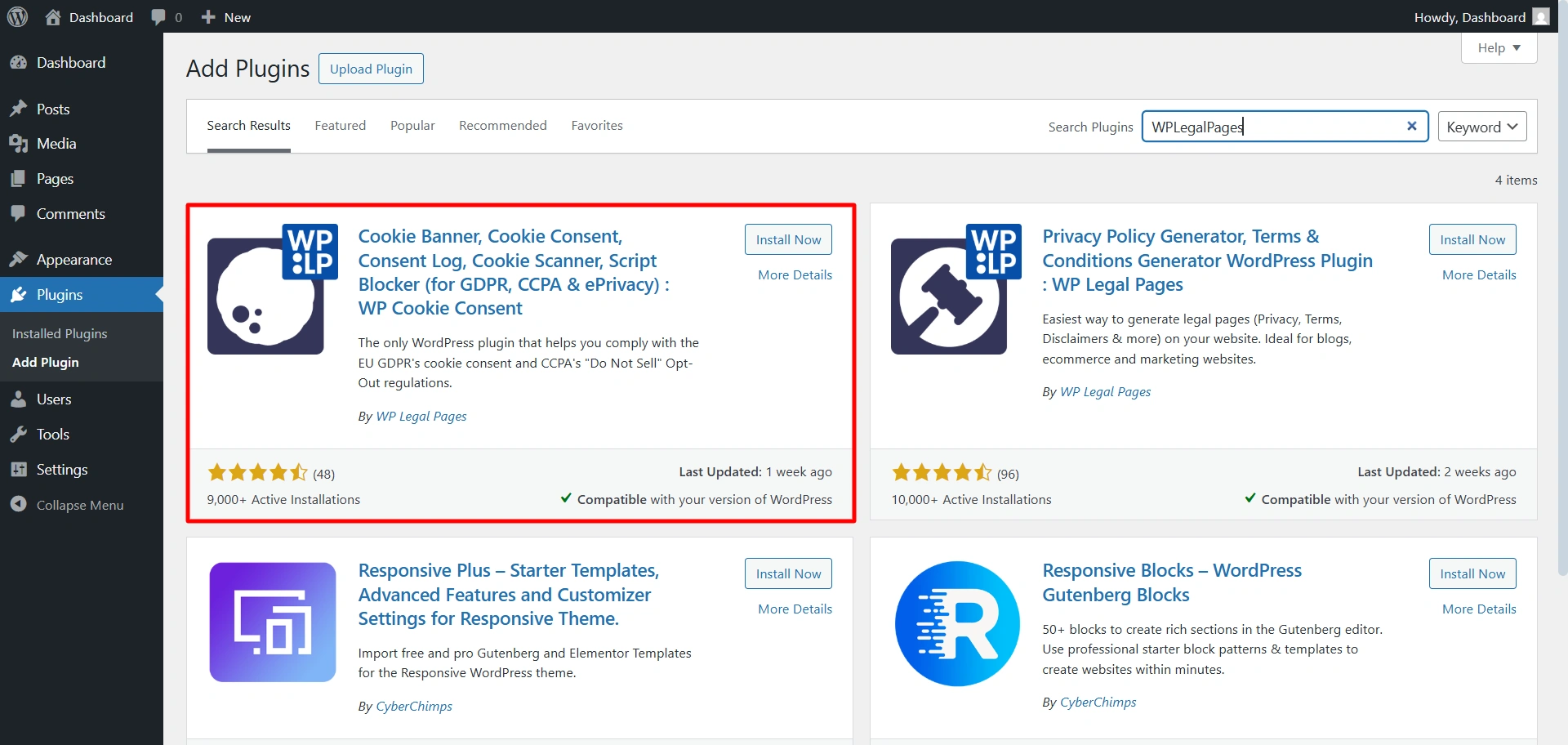
Install Legal Pages Generator for legal pages.
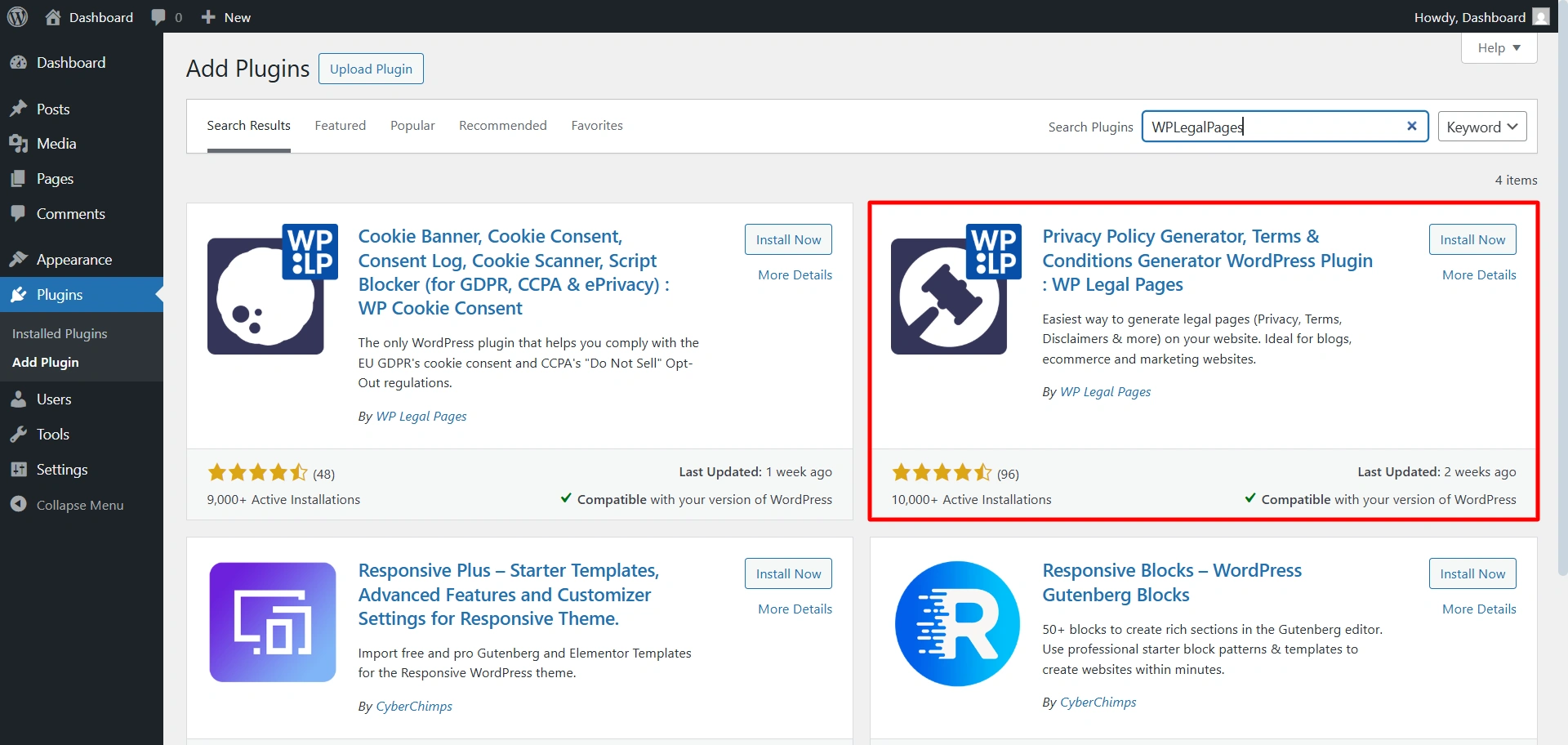
Click Install Now and then Activate.
2. Manual Upload (Zip File) #
When you log in to the website or create an account, you’ll get access to downloadable ZIP files. Download the file.

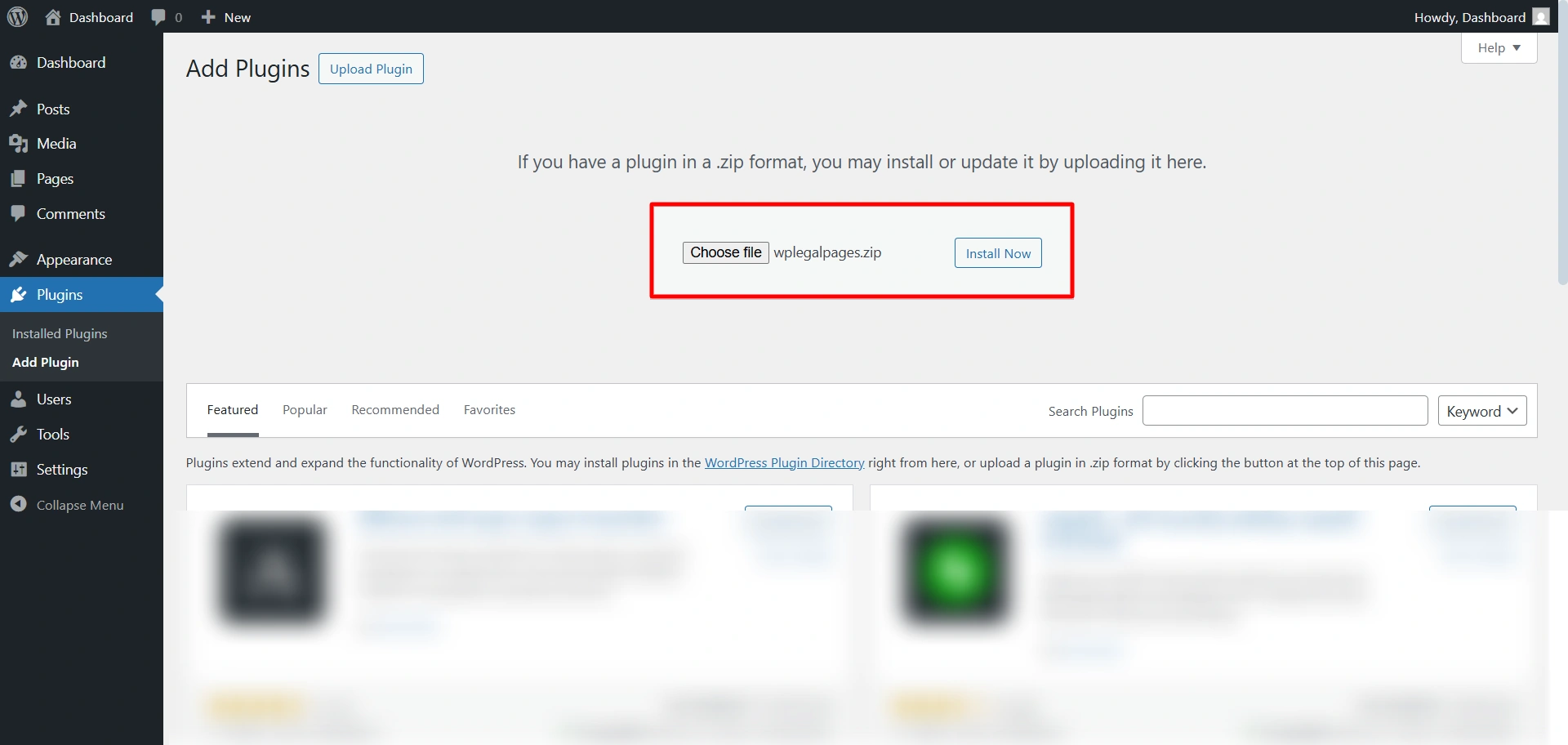
From your WordPress dashboard, go to Plugins > Upload plugins.

Upload the zip file. Click on Install Now.
Click on the active plugin.
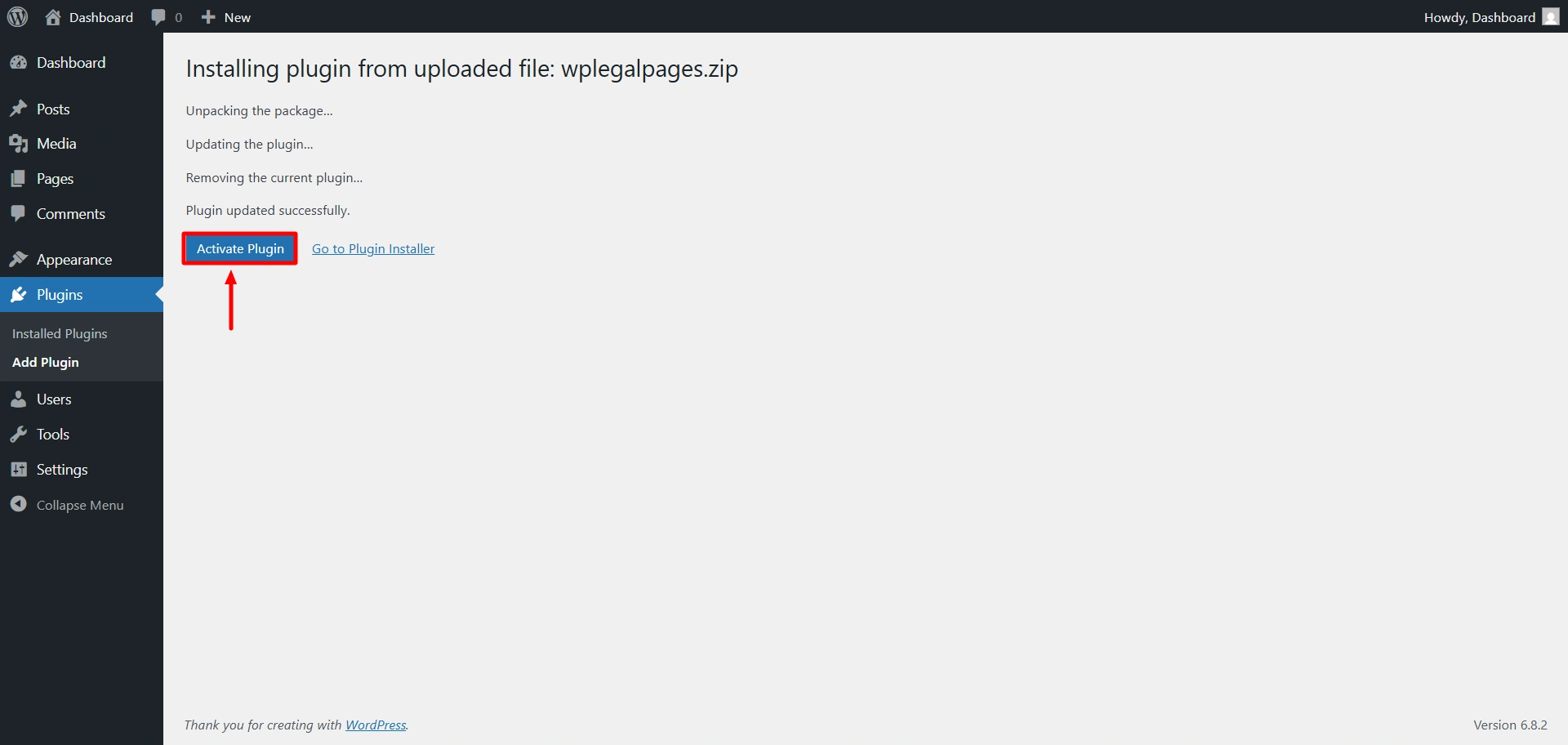
Once activated, a new menu item called WPLegalPages will appear in your dashboard.
2. Activate the PRO Plan #
You can activate your WPLP Pro plan in two ways, depending on how you purchased it:
- Upgraded from inside the WordPress plugin
- Purchased directly from the WPLP website
Both methods are straightforward. Follow the steps below based on your situation.
Option 1: Upgrade to Pro from Inside the Plugin #
If you started with the free version of WPLP and want to upgrade:
Step 1: Open WPLP in Your WordPress Dashboard #
Log in to your WordPress admin area and open WP Legal Pages / WPLP Compliance Platform from the sidebar.
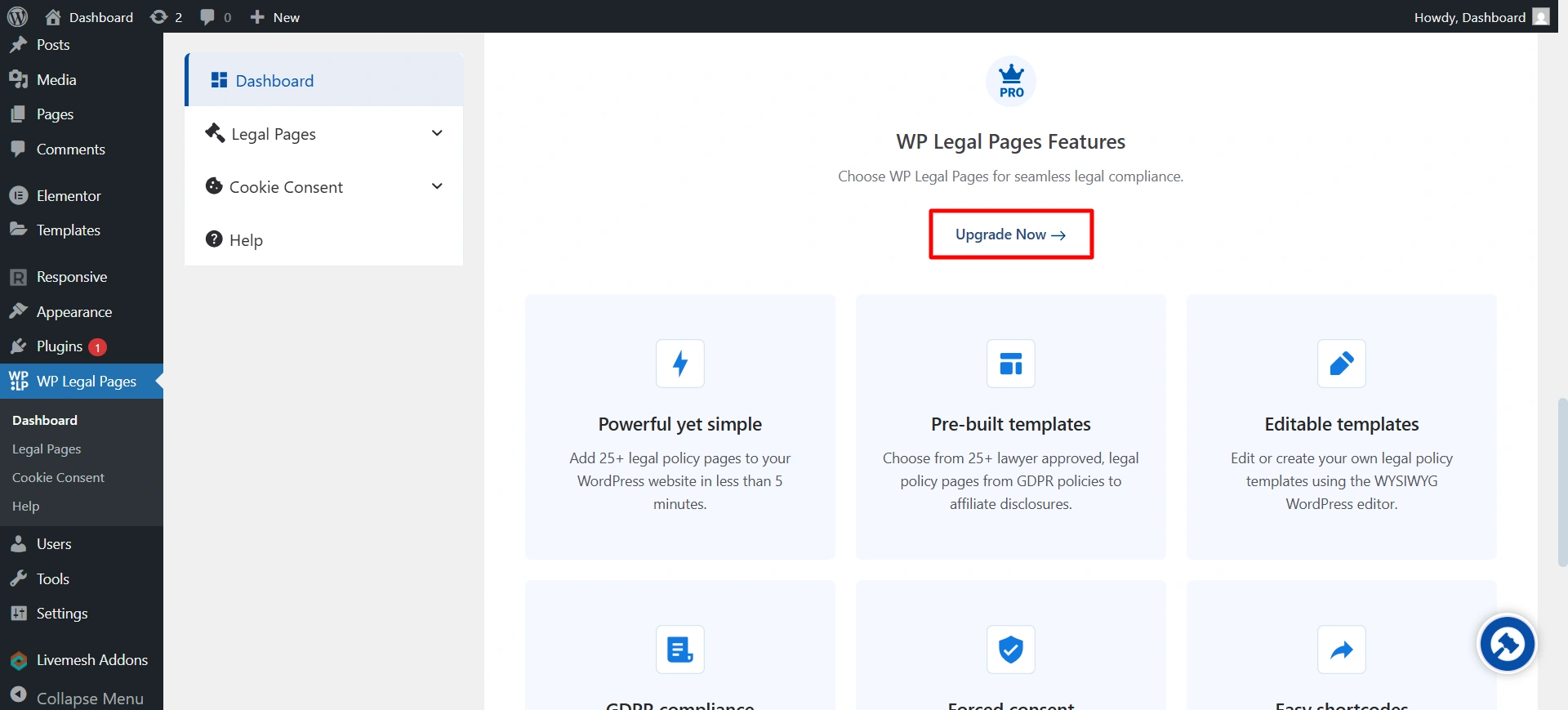
Step 2: Click “Upgrade” #
You’ll see an Upgrade or Upgrade to Pro option inside the plugin dashboard.
Click it to continue.
Step 3: Choose a Plan #
You’ll be redirected to the WPLP pricing page.
Select the plan that fits your needs and proceed.
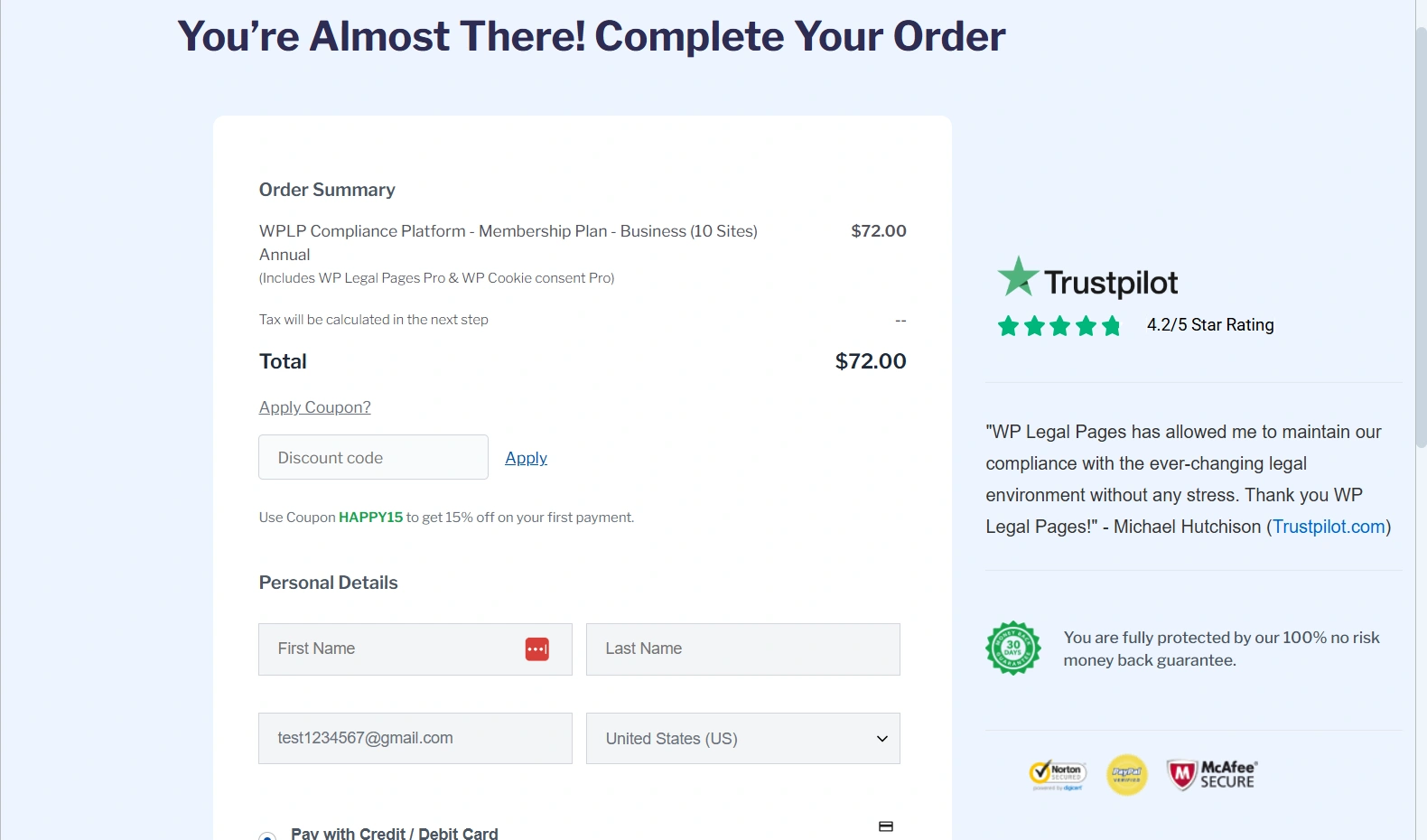
Step 4: Complete Checkout #
Fill in the required details on the checkout page and complete your purchase.
Once the payment is successful, your Pro features will be activated automatically for your account.
If you face any issues during checkout, reach out to us at support@wplegalpages.com.
Option 2: Activate Pro After Purchasing Directly from the Website #
If you already purchased a WPLP plan directly from the website (without upgrading from the plugin):
Step 1: Install Any WPLP Plugin #
Go to Plugins → Add New in your WordPress dashboard and install any WPLP plugin, such as:
- WP Legal Pages
- WP Cookie Consent
Activate the plugin after installation.
Step 2: Log In to Your WPLP Account #
Inside the plugin dashboard, click on the Log In button.
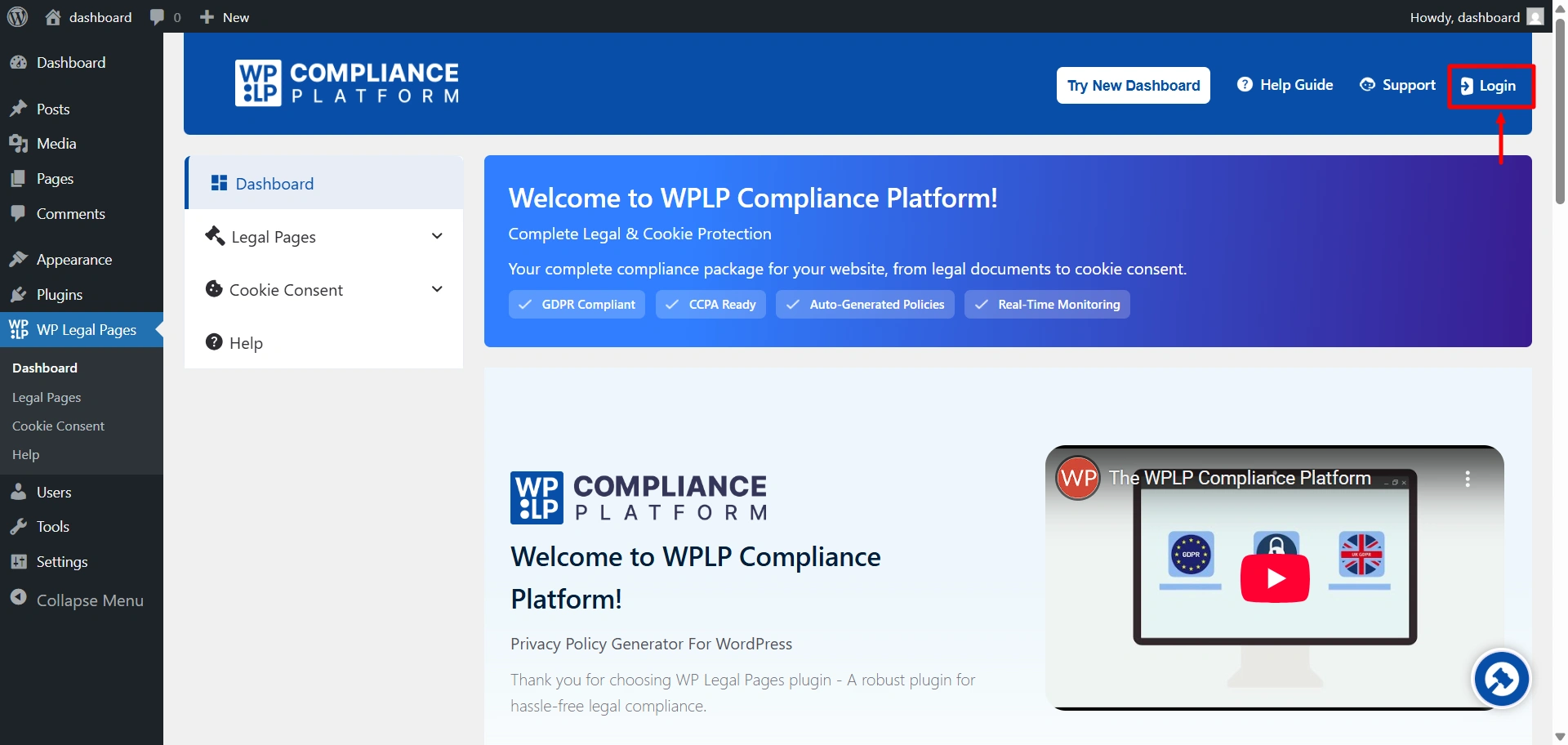
Use the same email address and password you used while purchasing the plan on the WPLP website.
Step 3: Pro Plan Activated Automatically #
Once logged in, the plugin will automatically detect your active Pro plan and unlock all Pro features—no license key required.
That’s it. Your Pro plan is now active on your site.
3. Updating to the Latest Version #
WPLP receives regular updates with bug fixes, new templates, and compliance rule changes.
To update it, go to the installed plugins option. And click on Enable auto-updates
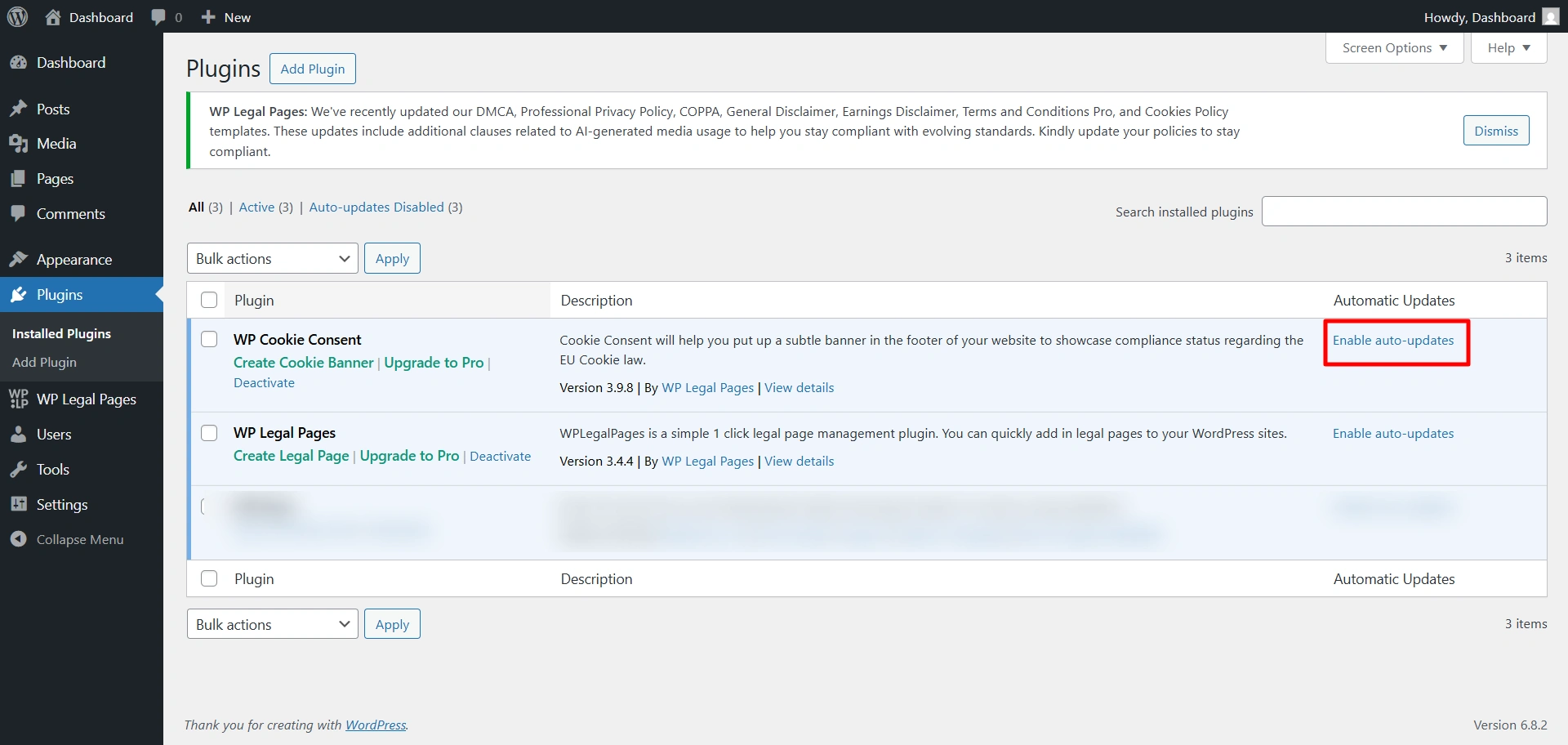
We strongly recommend enabling automatic updates for WPLP to ensure you never miss compliance changes.
4. Next Steps #
Once you’ve completed the setup:
- Head to the Setup & Configuration docs for detailed banner and policy customisation.
- Review Features Walkthrough to explore advanced options like Consent Logs, Integrations, and Auto Updates.
- If you face issues, jump to Troubleshooting.


