
There are two methods to confirm the proper implementation of Google Consent Mode on your website.
- Using Tag Assistant
- In-App GCM Checker and Debug Mode
Method 1: Using the Tag Assistant #
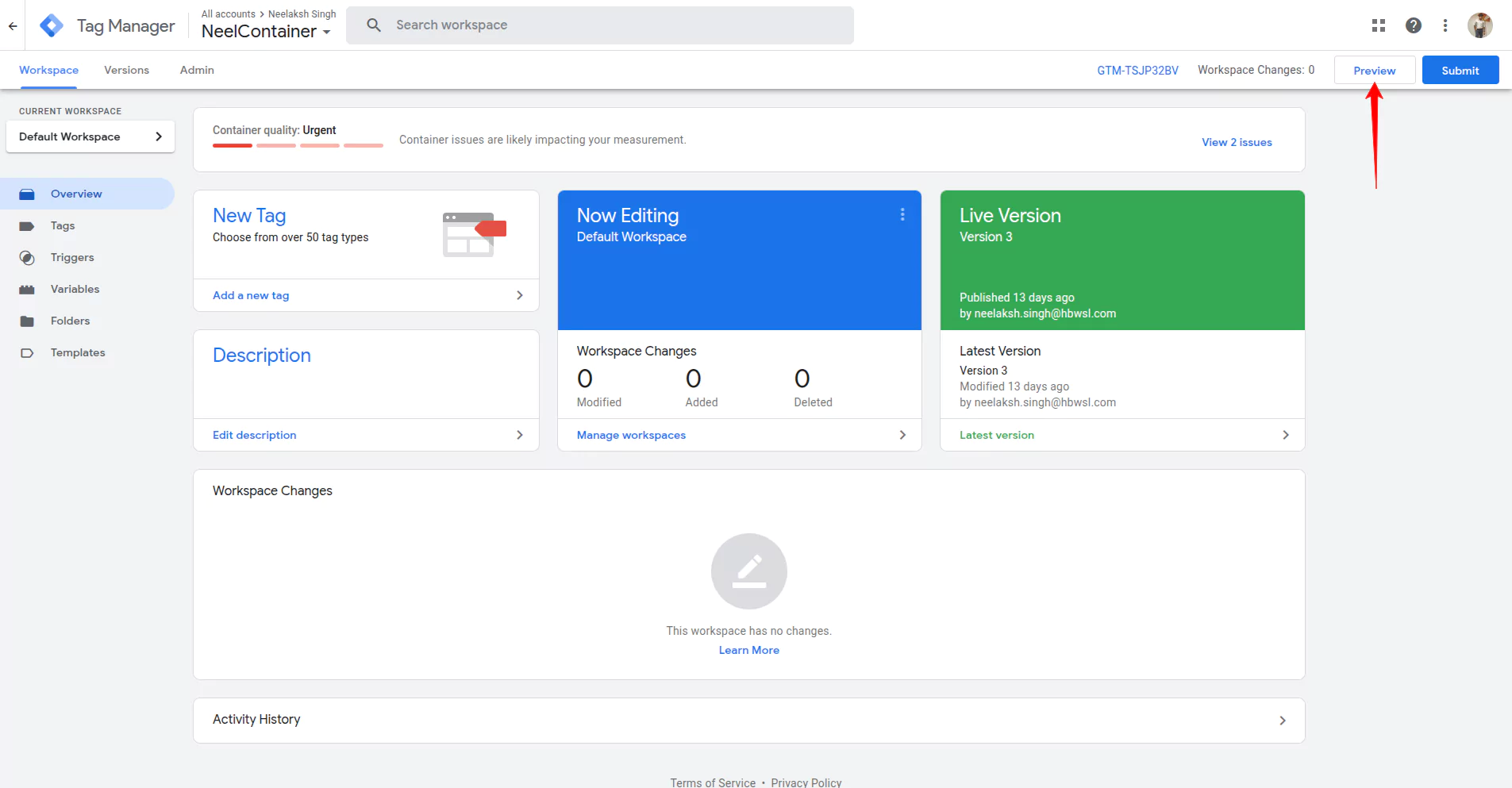
- Log into your Google Tag Manager account and enable Preview mode from the top panel.
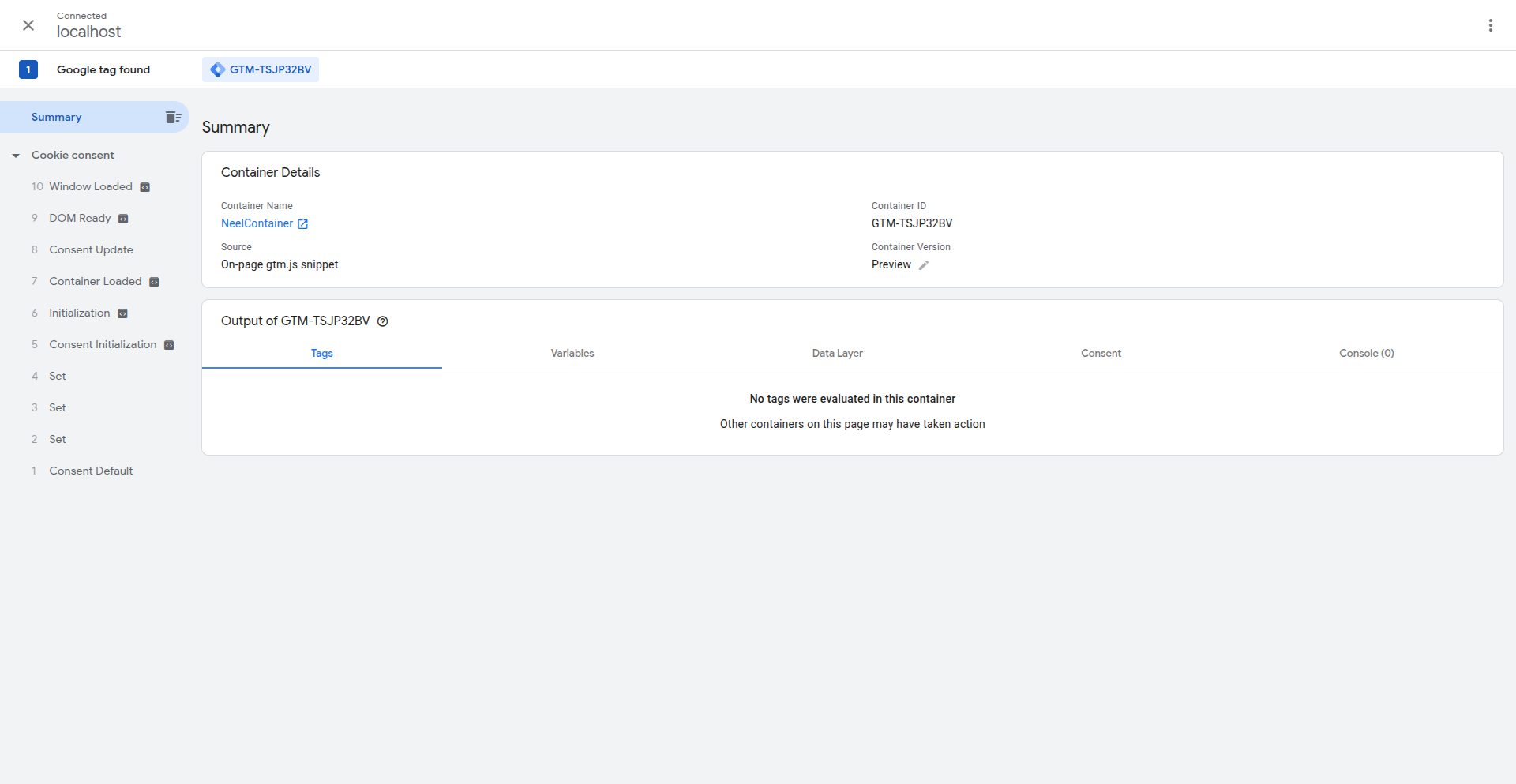
- A Tag Assistant debug console appears at the bottom of your website.
- Access the debugging window to monitor the tags firing on your site.
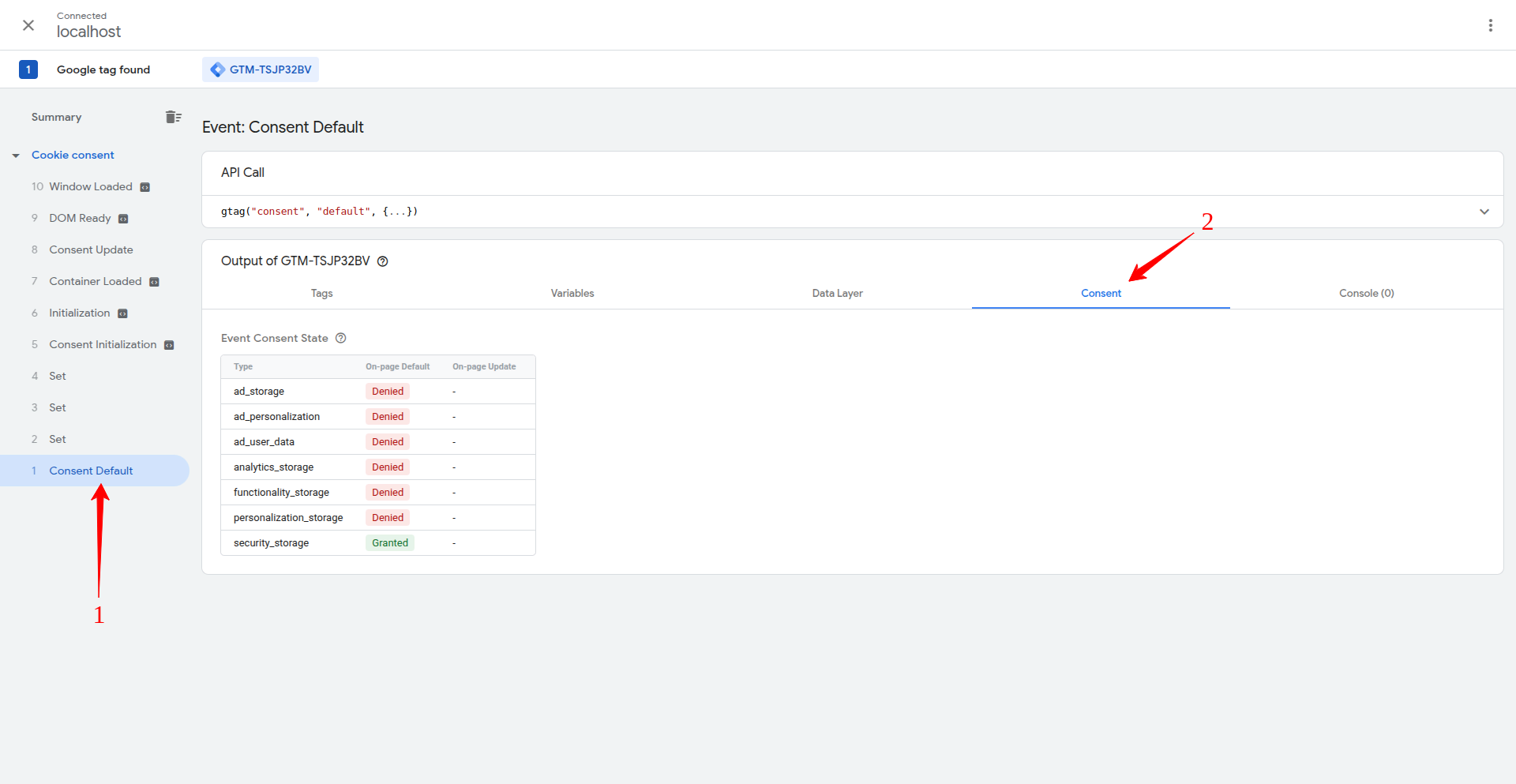
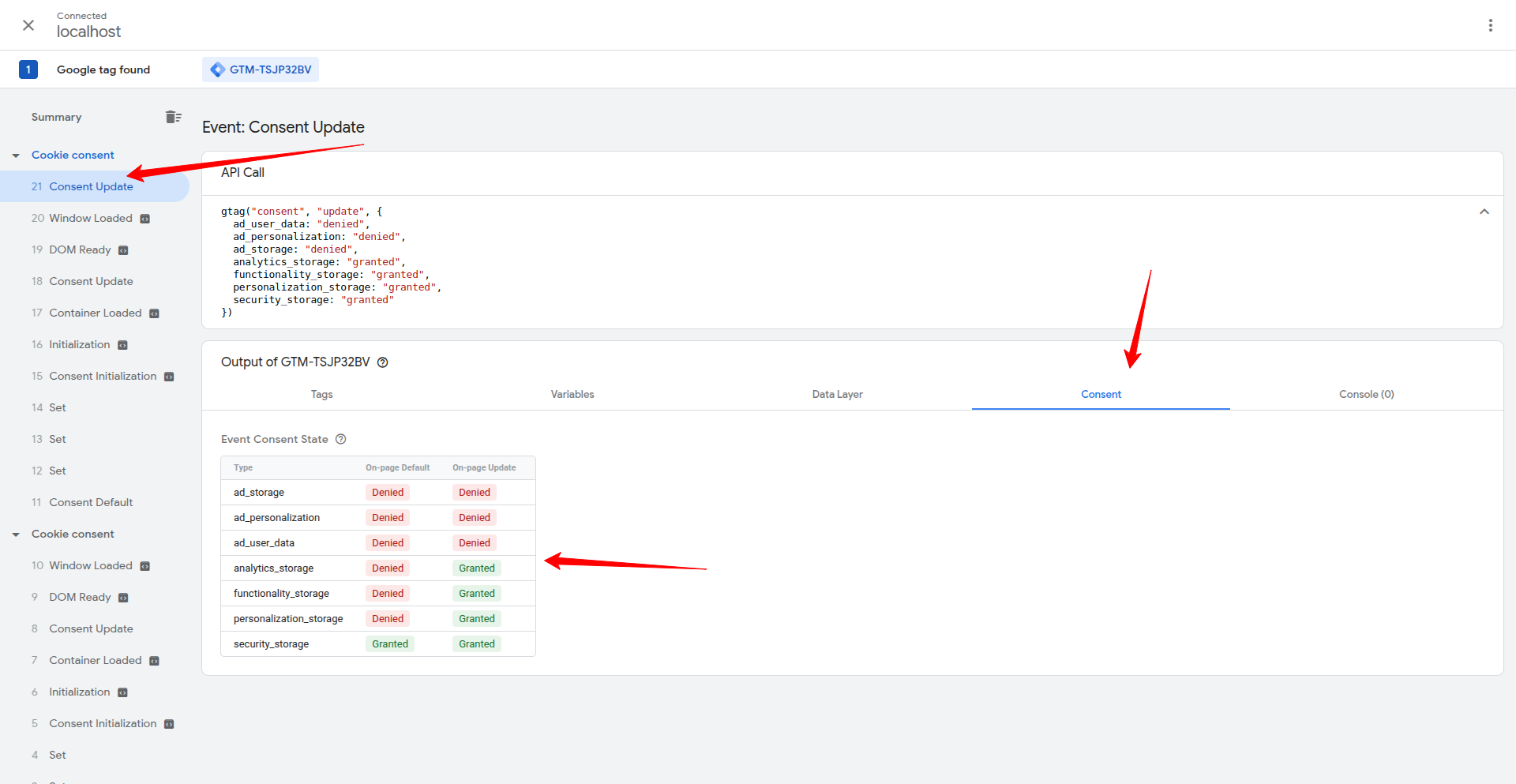
- In your Tag Assistant console, you will see a Default Consent event. These are the default values being set that you specified in your plugin dashboard. Verify whether all seven sets of parameters are correct. The default consent event should always be the first event.
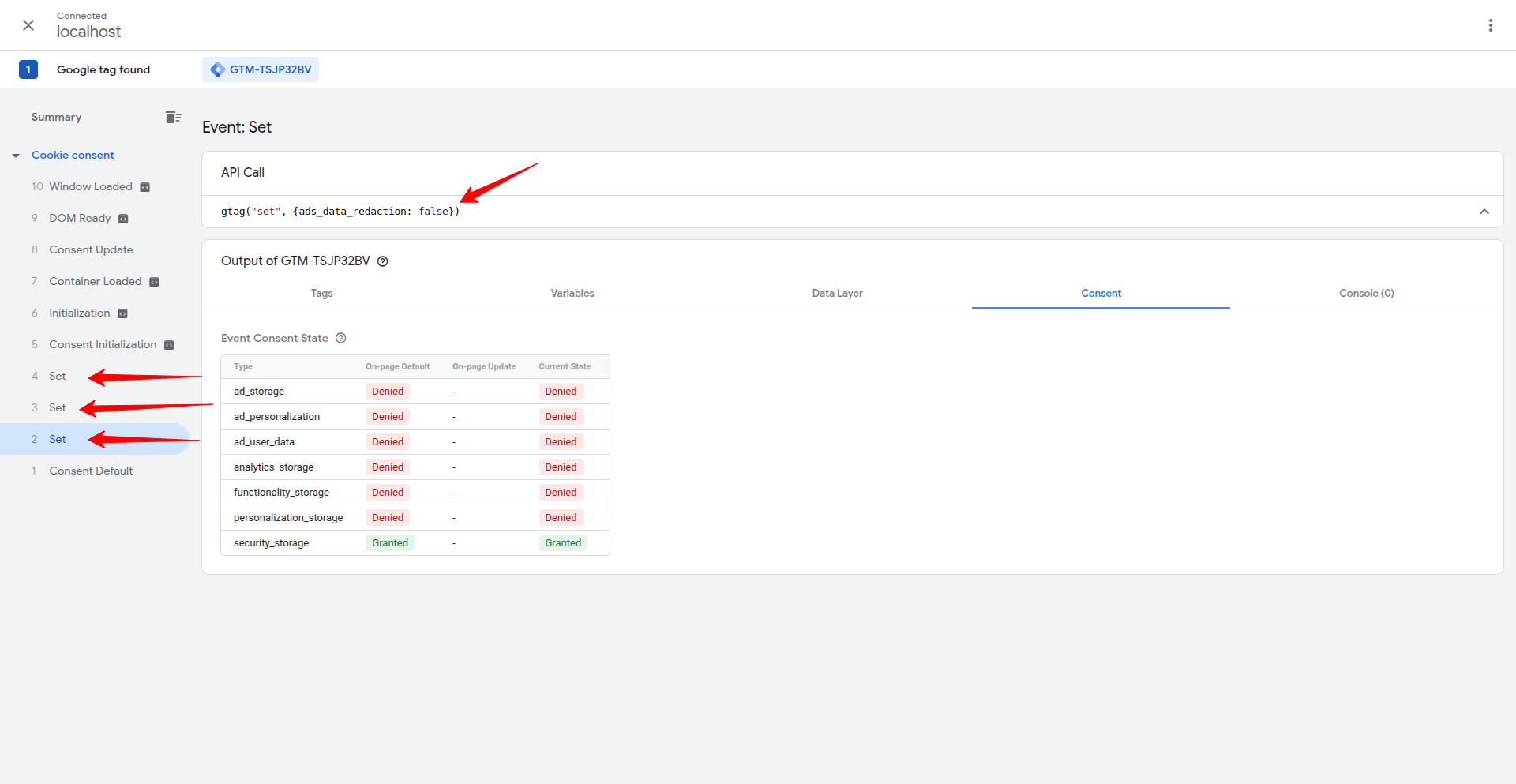
- You will see additional set events, which indicate that extra parameters are being set to their desired values.
- Now, on your website, open the cookie banner and accept the desired parameters.
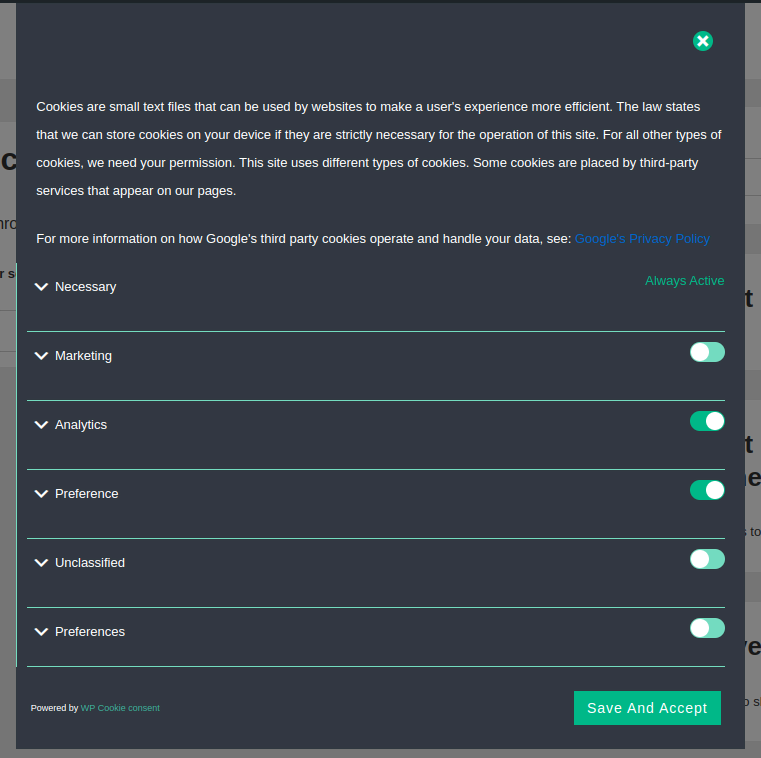
- In your Tag Assistant Console, an Update Consent event should appear.
Method 2: Using the In-App GCM Checker and Debug Mode #
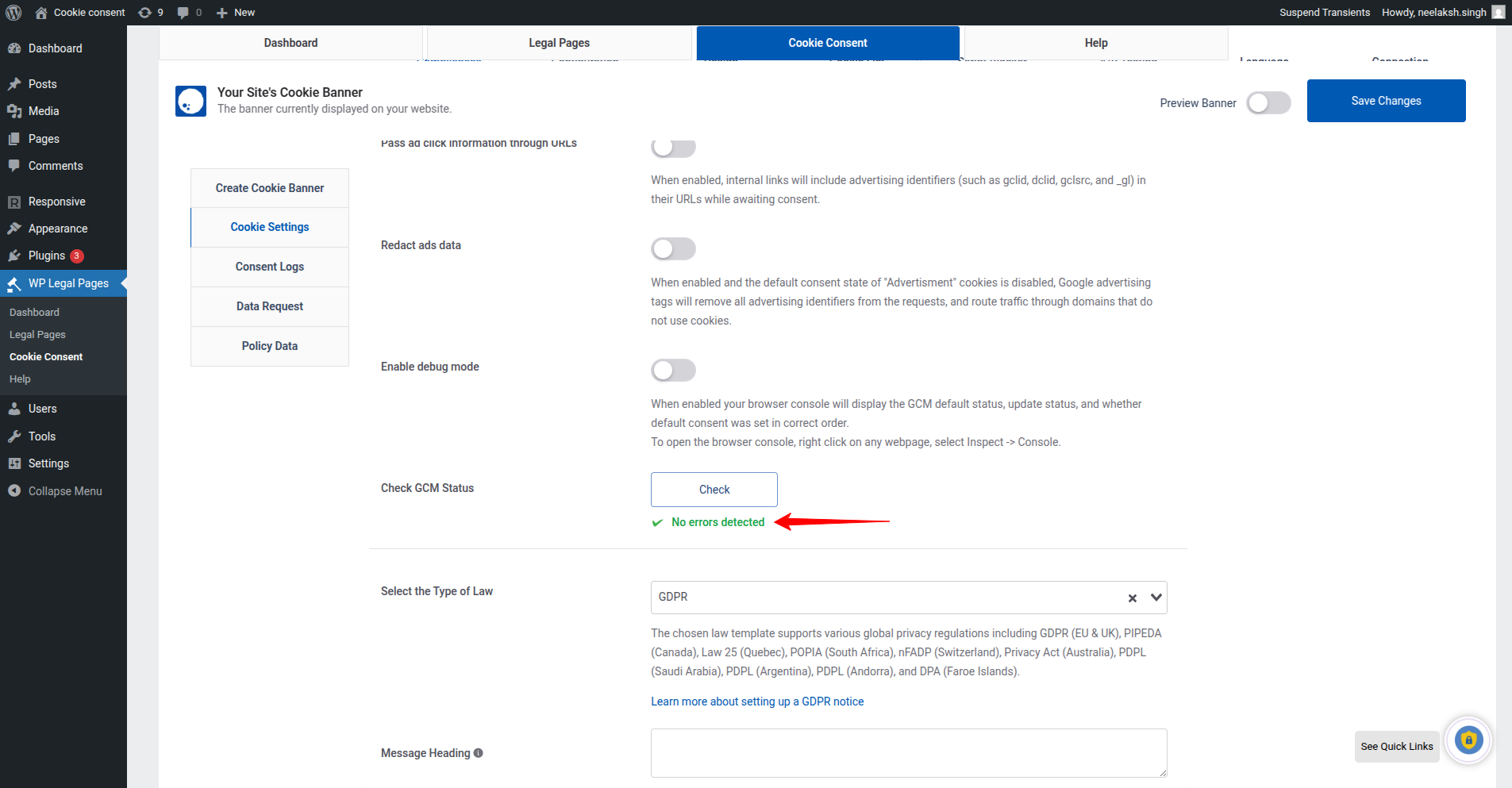
- Navigate to the WP Cookie Consent Plugin Dashboard and open Cookie Consent -> Cookie Settings -> Compliances tab.
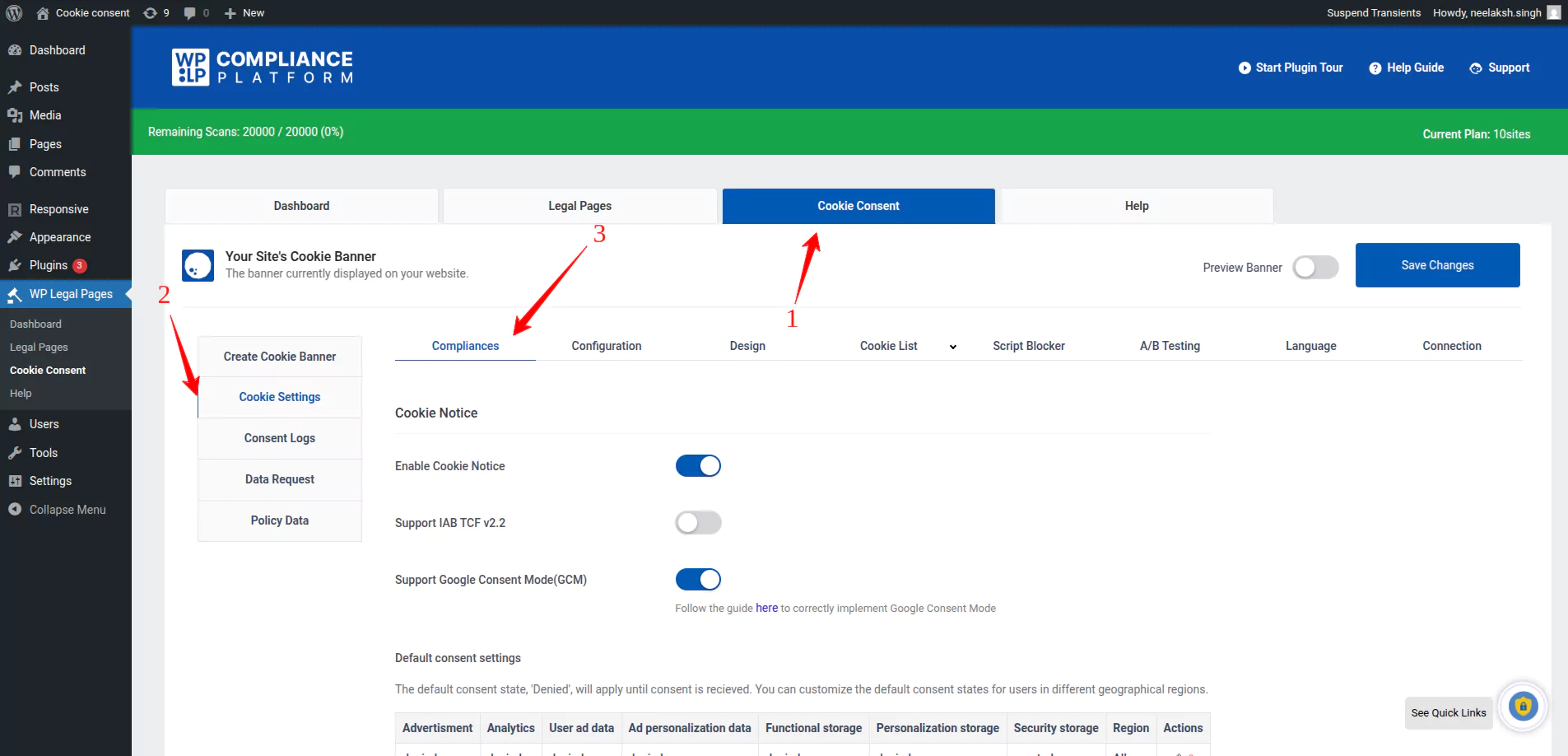
- Scroll down the Google Consent Mode (GCM) section and find the Check GCM Status button.
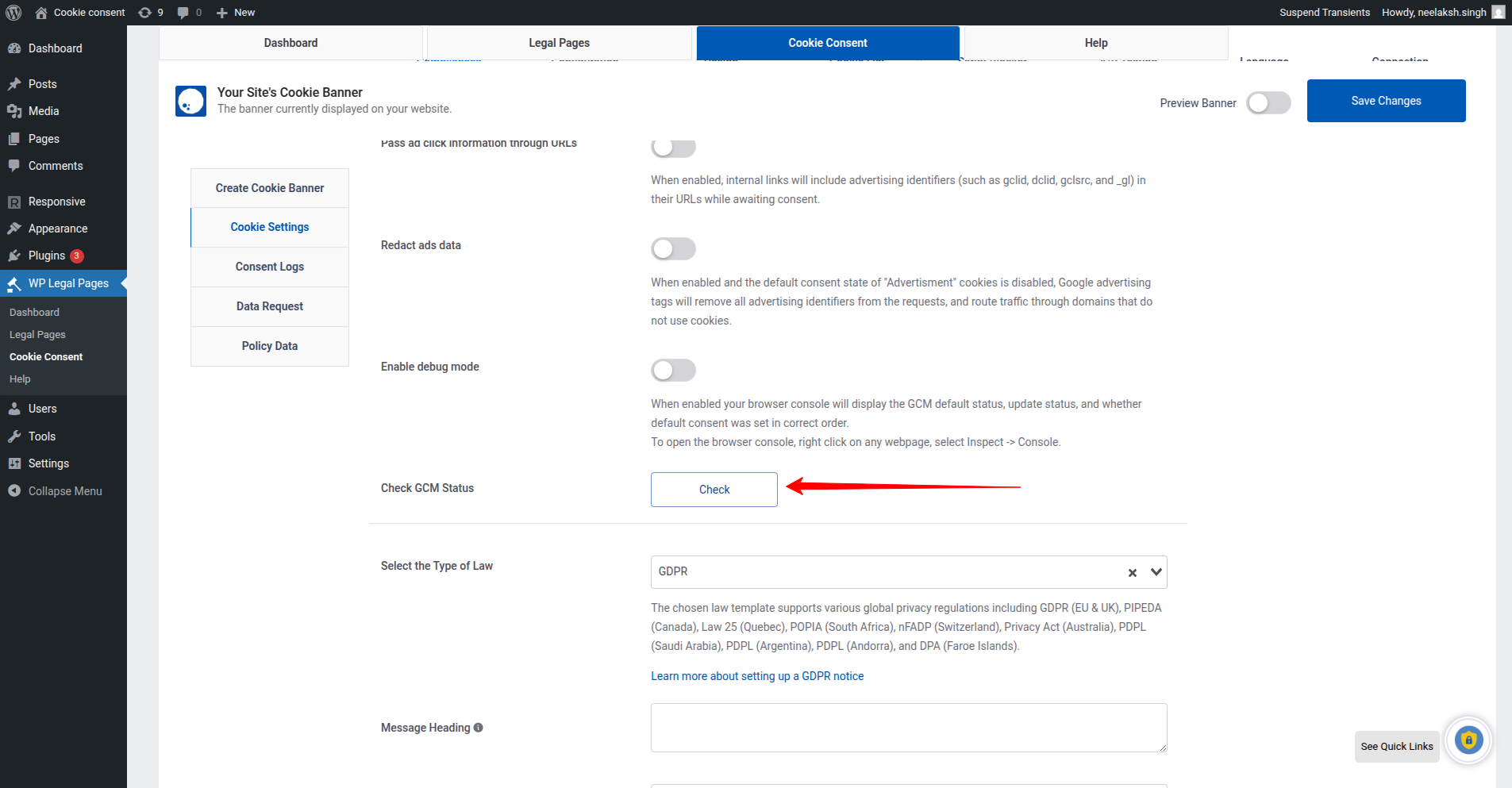
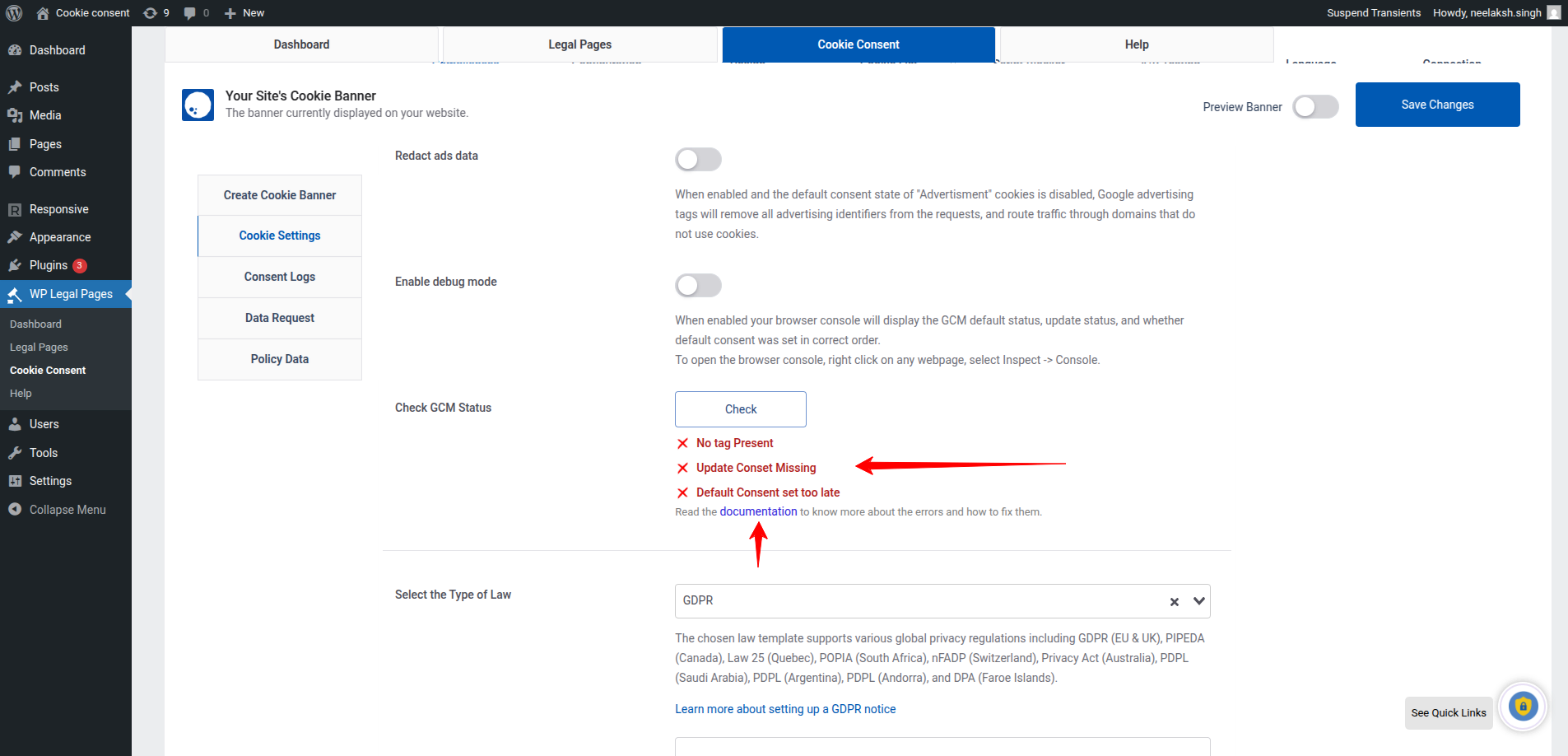
- Click on Check, and the plugin will run a configuration check on your implementation, generating a report. If you see No Errors Detected, it means you have successfully implemented GCM. If you encounter errors, refer to the GCM Troubleshooting documentation for more information about the mistakes and the steps to resolve them.
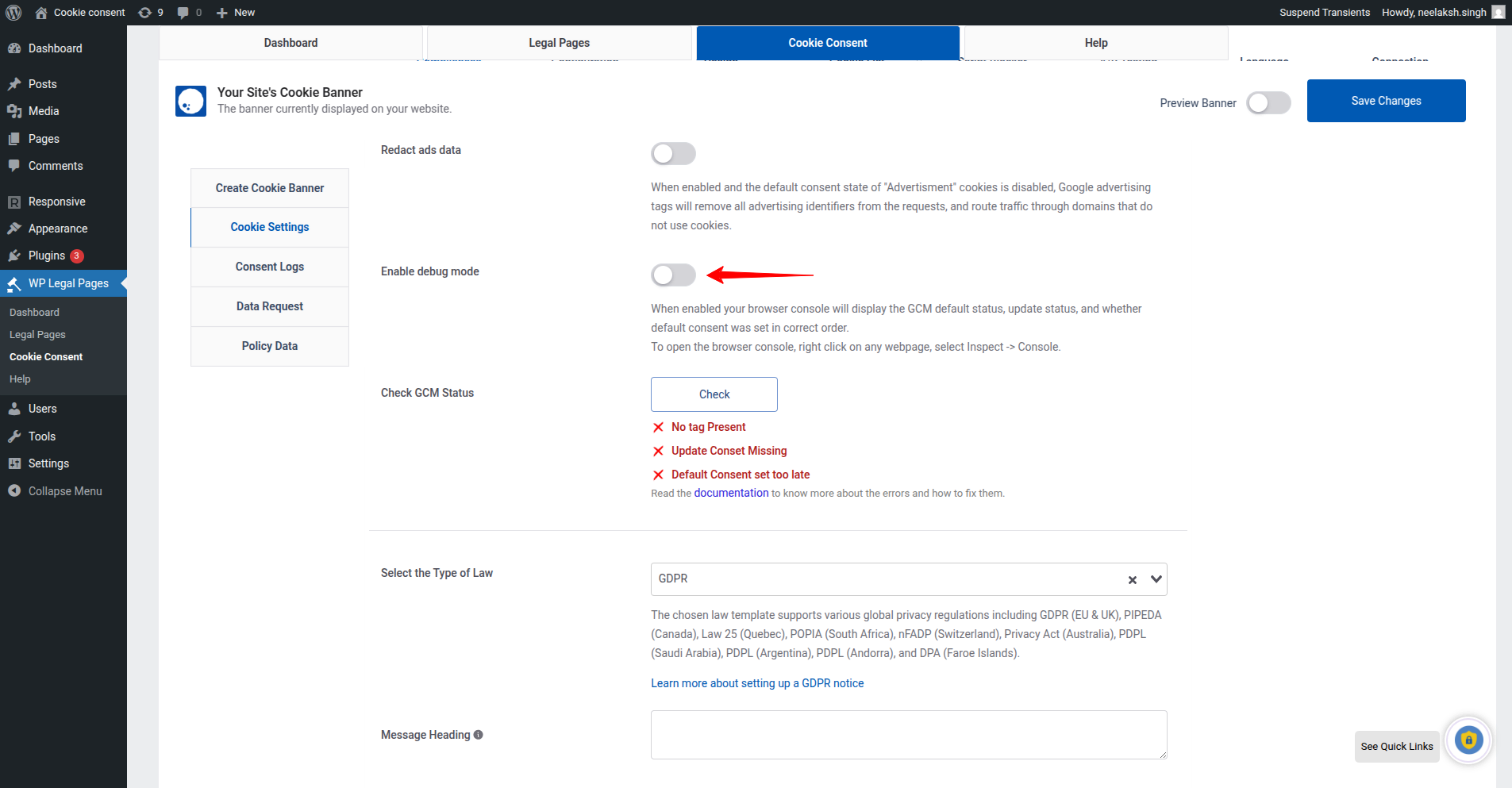
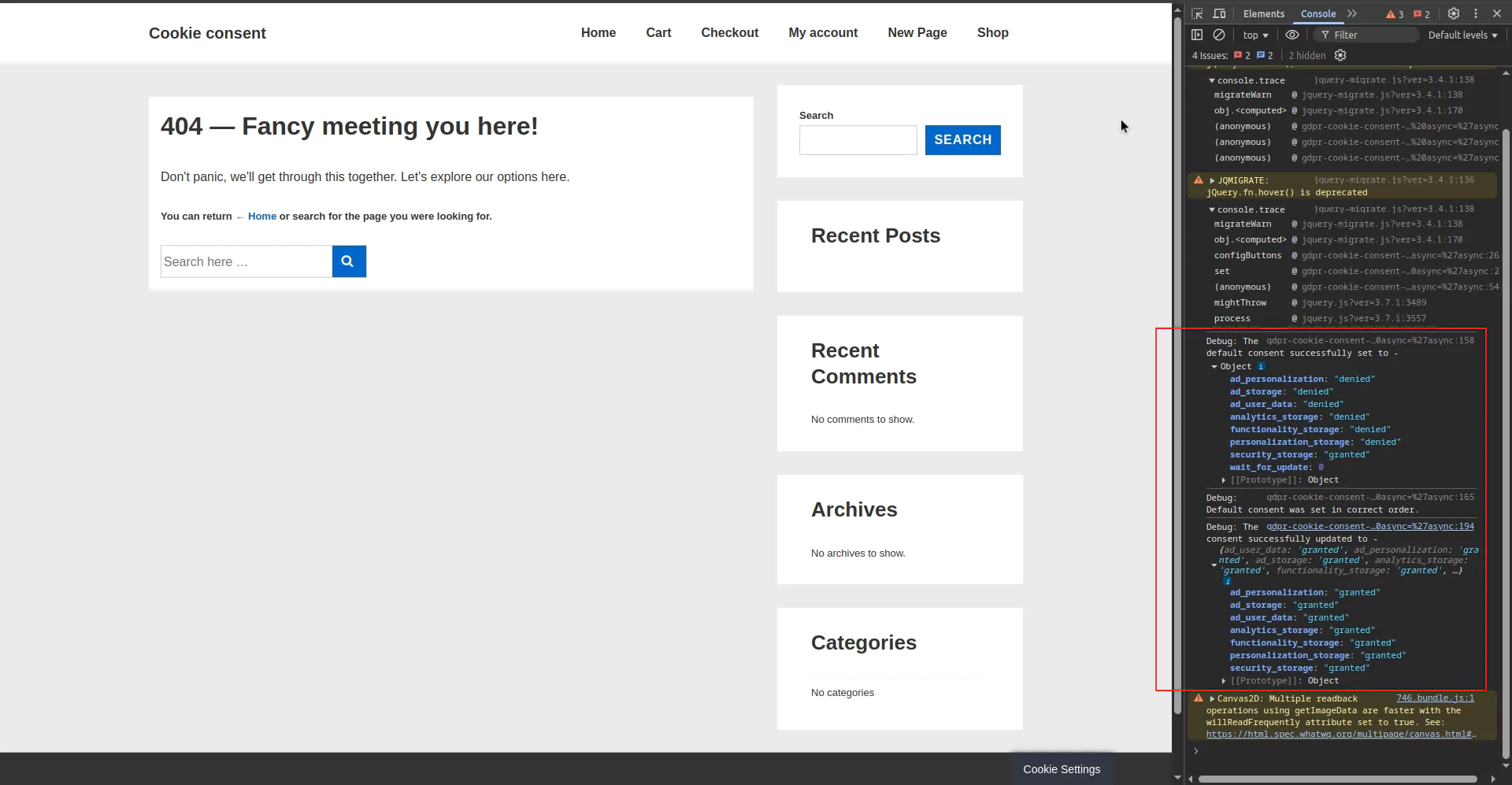
- Alternatively, you can use the Enable Debug Mode button to display the GCM default status, update status, and timing information directly in your browser console.
For further assistance, please raise a support ticket on our dedicated GCM Support page.


